Hi Ben,
This is quite a hidden and implicit key stroke. Regardless that I know I've used it before follow a tutorial, I forgot it. Since Spotter has a <Settings Icon> (which I like and think it could be pushed as a standard throughout the system in Pharo 5), it might be useful for Pharo 4 if the Spotter Settings page contains a "How To" or "Keyboard shortcuts" item that just contains descriptive text. Or if there is no facility for that, perhaps a few of the keyboard shortcuts listed as individual items with descriptions, even if you can't change them. I think this will be useful for people presented with Spotter for the first time, particularly since first use already prompts users to go to settings to send usage data.
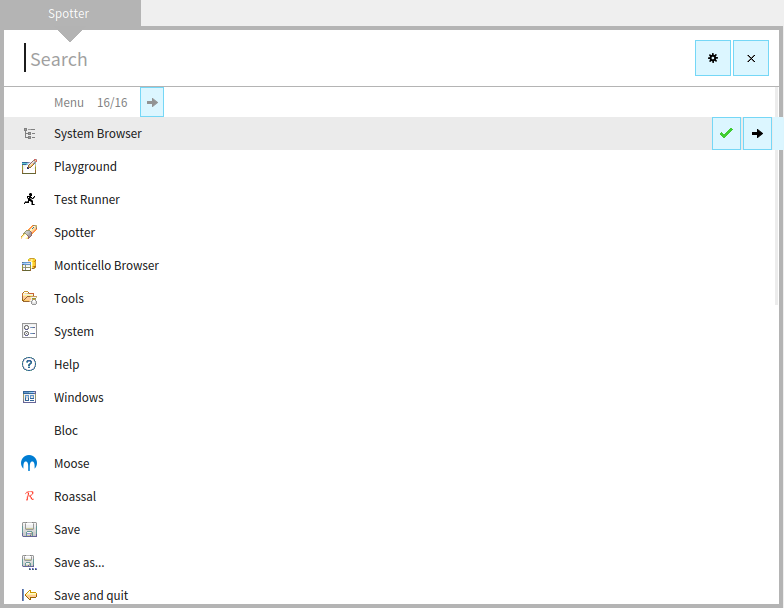
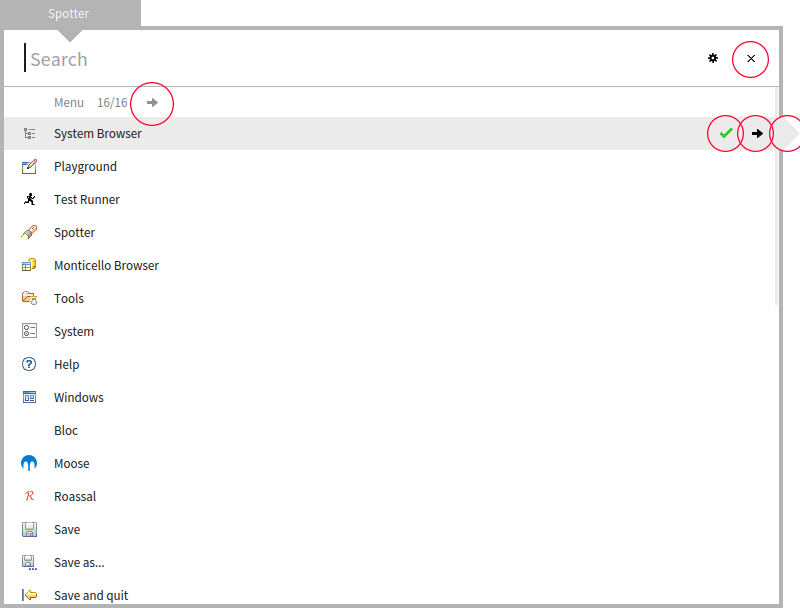
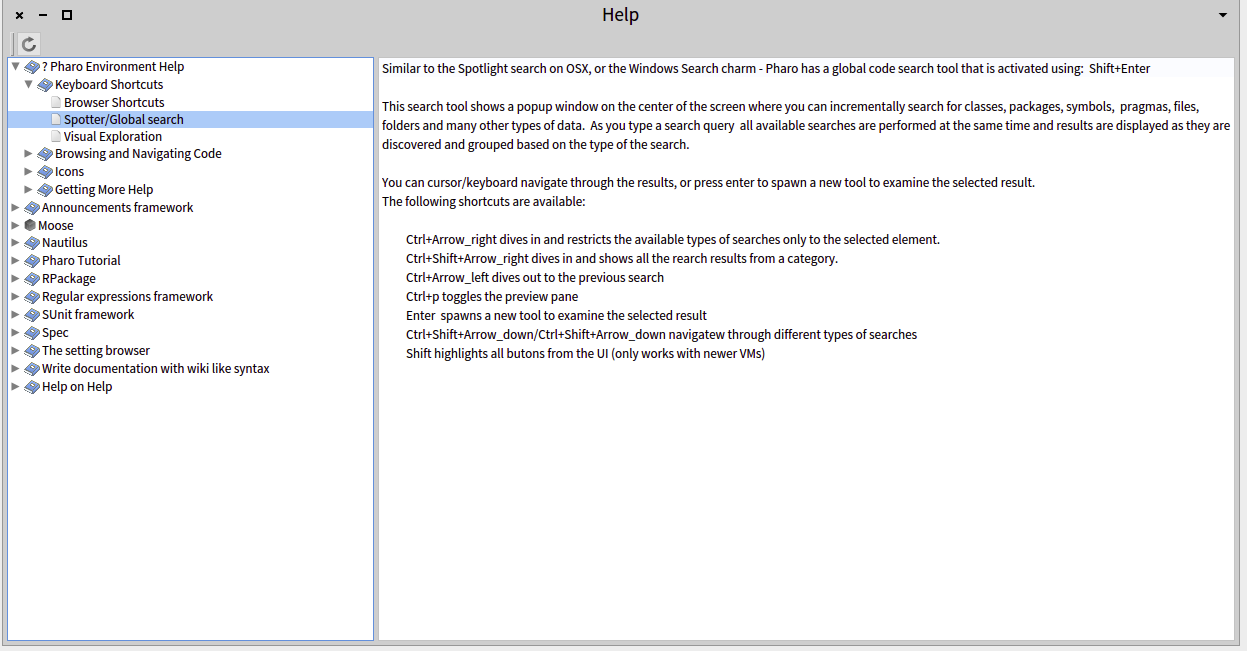
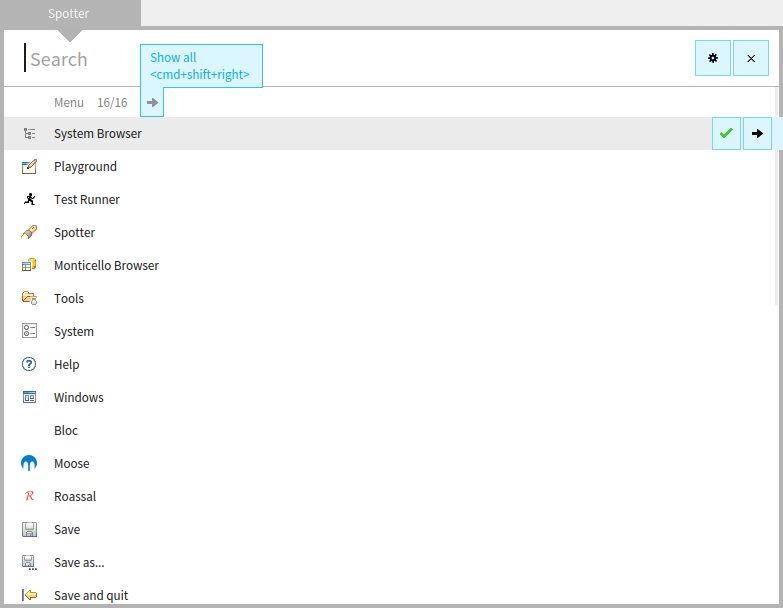
Yes, you right, shortcuts were quite hidden. However, after we received a lot of similar feedback we improved the situation with shortcuts. Now all actions in Spotter have explicit action buttons: [image: Inline image 1] As soon as you press "shift" (you can't not to press shift during usage of spotter) all action buttons are highlighted explicitly: [image: Inline image 2] If you hover action button for a few second a hint appears that tells which shortcut is assigned to an action. If you hover the button while pressing shift a hint appears immediately: [image: Inline image 3] Also, in Pharo help there is a good tutorial listing all Spotter shortcuts and assigned actions: [image: Inline image 4] How else can we improve discoverability of Spotter features? Cheers, Alex Cheers, Alex On Sun, Apr 5, 2015 at 2:35 AM, Ben Coman <btc@openinworld.com> wrote:
Thanks Aliaksei.
This is quite a hidden and implicit key stroke. Regardless that I know I've used it before follow a tutorial, I forgot it. Since Spotter has a <Settings Icon> (which I like and think it could be pushed as a standard throughout the system in Pharo 5), it might be useful for Pharo 4 if the Spotter Settings page contains a "How To" or "Keyboard shortcuts" item that just contains descriptive text. Or if there is no facility for that, perhaps a few of the keyboard shortcuts listed as individual items with descriptions, even if you can't change them. I think this will be useful for people presented with Spotter for the first time, particularly since first use already prompts users to go to settings to send usage data.
cheers -ben
On Sun, Apr 5, 2015 at 8:25 AM, Aliaksei Syrel <alex.syrel@gmail.com> wrote:
Hi Ben,
It's CMD+Shift+Right On Apr 5, 2015 2:23 AM, "Ben Coman" <btc@openinworld.com> wrote:
Just a note, I went back to an old image and really miss the Spotter workflow.
One thing, can you remind me how when it shows 5/30 implementors I get a list of all 30? I'm sure I've done this before but can't remember. Perhaps this means its not obvious and maybe should appear in a "How To Use" section in the Release Notes.
cheers -ben