
Just a note, I went back to an old image and really miss the Spotter workflow. One thing, can you remind me how when it shows 5/30 implementors I get a list of all 30? I'm sure I've done this before but can't remember. Perhaps this means its not obvious and maybe should appear in a "How To Use" section in the Release Notes. cheers -ben

Hi Ben, It's CMD+Shift+Right On Apr 5, 2015 2:23 AM, "Ben Coman" <btc@openinworld.com> wrote:
Just a note, I went back to an old image and really miss the Spotter workflow.
One thing, can you remind me how when it shows 5/30 implementors I get a list of all 30? I'm sure I've done this before but can't remember. Perhaps this means its not obvious and maybe should appear in a "How To Use" section in the Release Notes.
cheers -ben
Thanks Aliaksei. This is quite a hidden and implicit key stroke. Regardless that I know I've used it before follow a tutorial, I forgot it. Since Spotter has a <Settings Icon> (which I like and think it could be pushed as a standard throughout the system in Pharo 5), it might be useful for Pharo 4 if the Spotter Settings page contains a "How To" or "Keyboard shortcuts" item that just contains descriptive text. Or if there is no facility for that, perhaps a few of the keyboard shortcuts listed as individual items with descriptions, even if you can't change them. I think this will be useful for people presented with Spotter for the first time, particularly since first use already prompts users to go to settings to send usage data. cheers -ben On Sun, Apr 5, 2015 at 8:25 AM, Aliaksei Syrel <alex.syrel@gmail.com> wrote:
Hi Ben,
It's CMD+Shift+Right On Apr 5, 2015 2:23 AM, "Ben Coman" <btc@openinworld.com> wrote:
Just a note, I went back to an old image and really miss the Spotter workflow.
One thing, can you remind me how when it shows 5/30 implementors I get a list of all 30? I'm sure I've done this before but can't remember. Perhaps this means its not obvious and maybe should appear in a "How To Use" section in the Release Notes.
cheers -ben
Hi Ben,
This is quite a hidden and implicit key stroke. Regardless that I know I've used it before follow a tutorial, I forgot it. Since Spotter has a <Settings Icon> (which I like and think it could be pushed as a standard throughout the system in Pharo 5), it might be useful for Pharo 4 if the Spotter Settings page contains a "How To" or "Keyboard shortcuts" item that just contains descriptive text. Or if there is no facility for that, perhaps a few of the keyboard shortcuts listed as individual items with descriptions, even if you can't change them. I think this will be useful for people presented with Spotter for the first time, particularly since first use already prompts users to go to settings to send usage data.
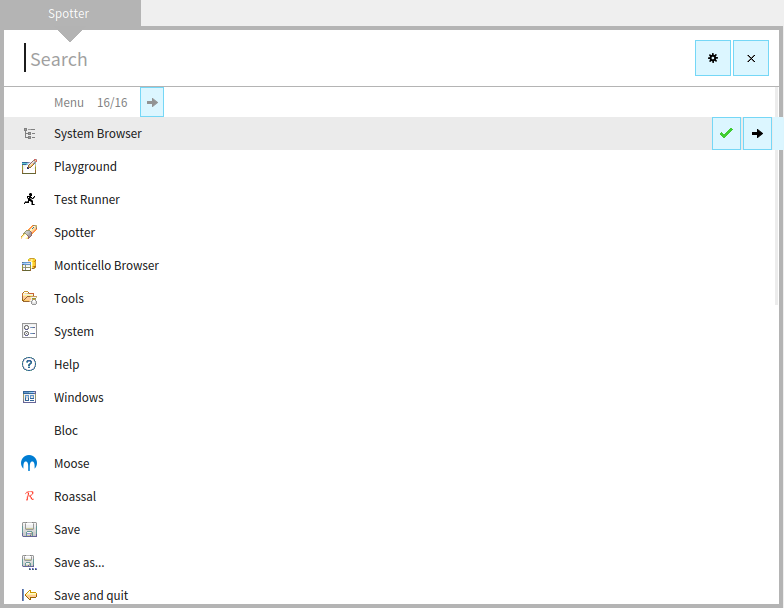
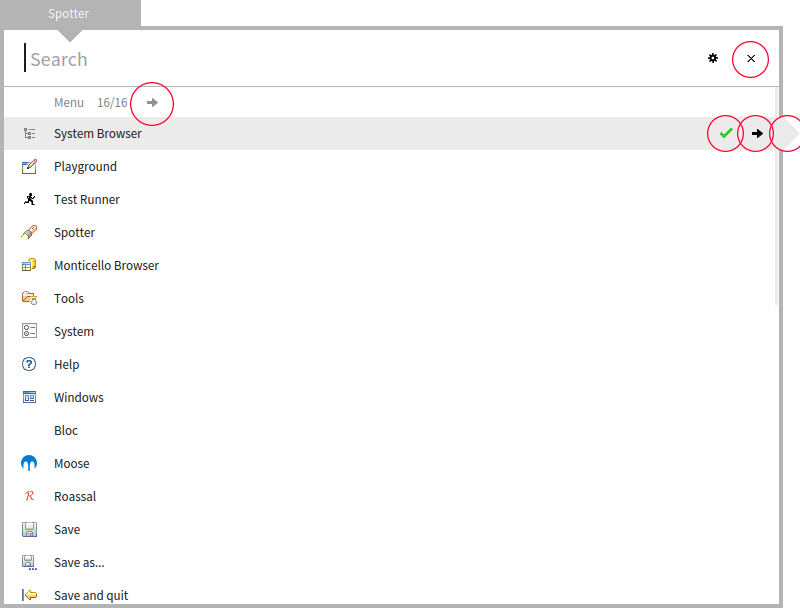
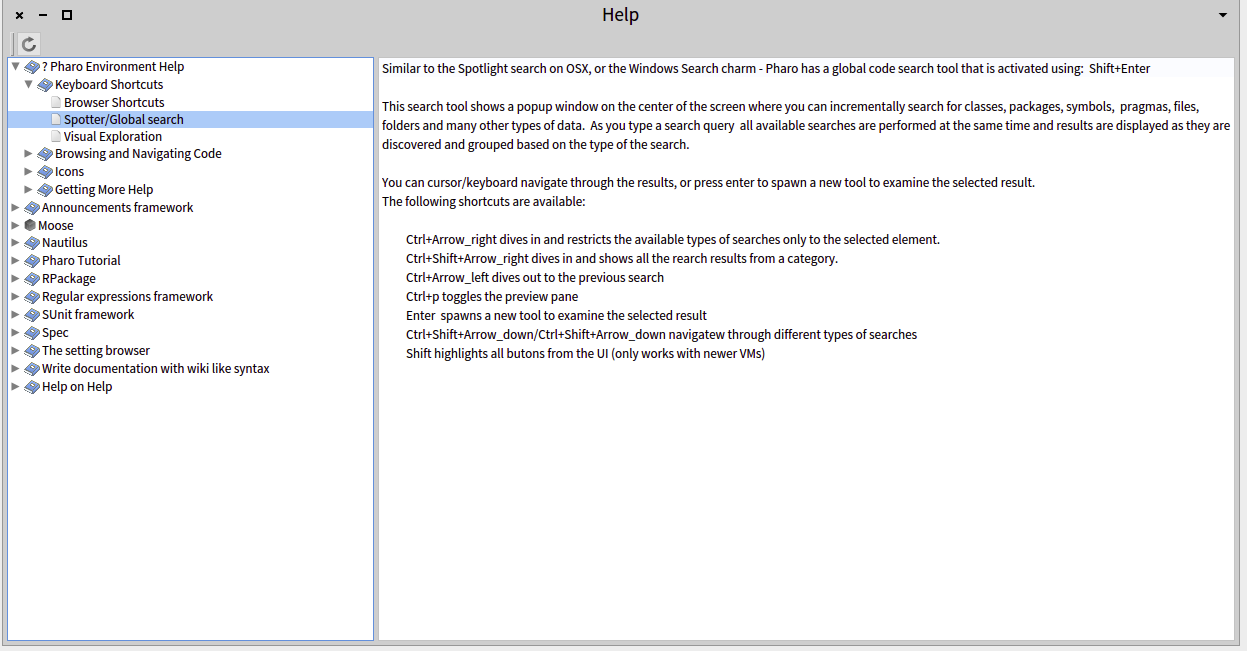
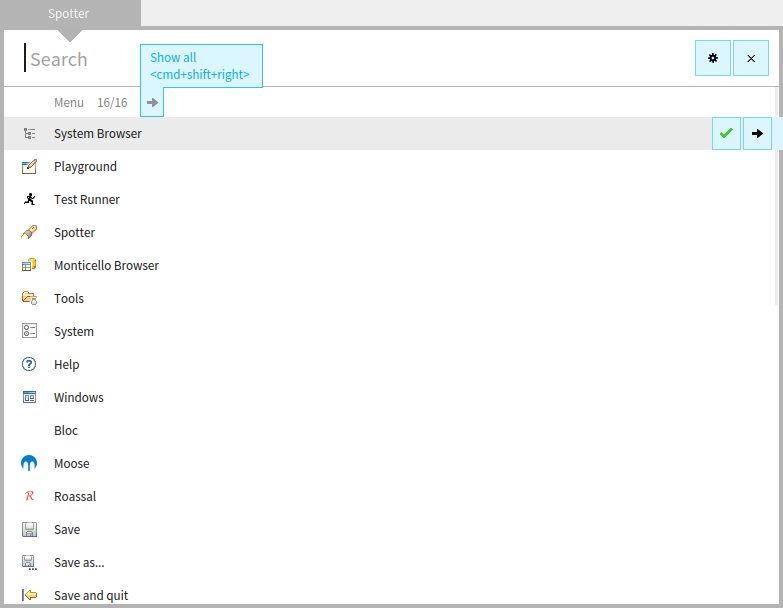
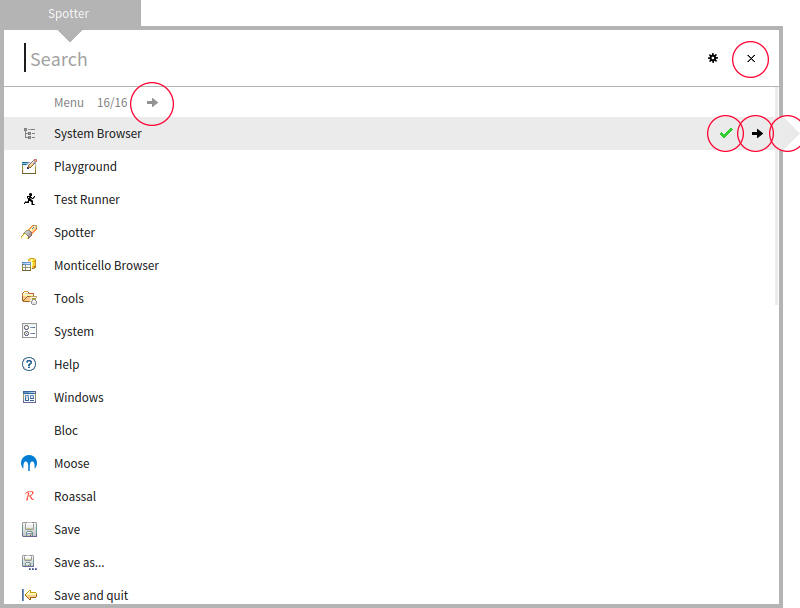
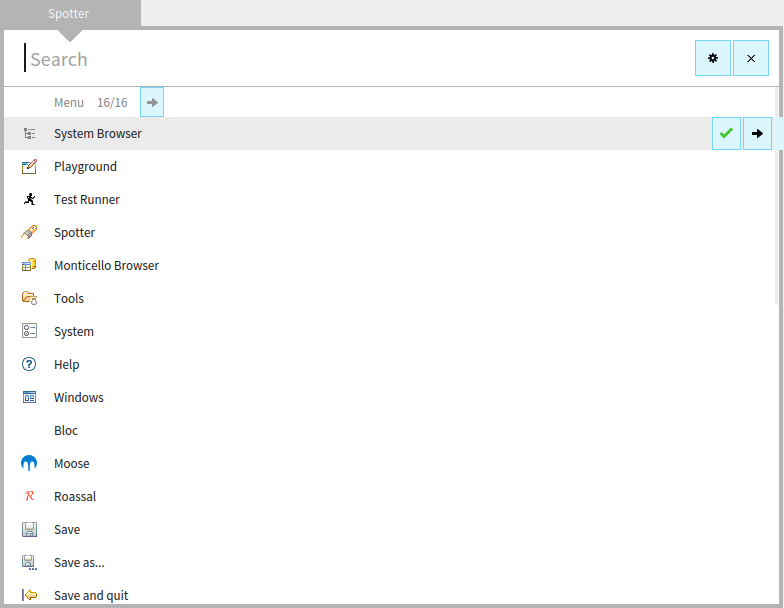
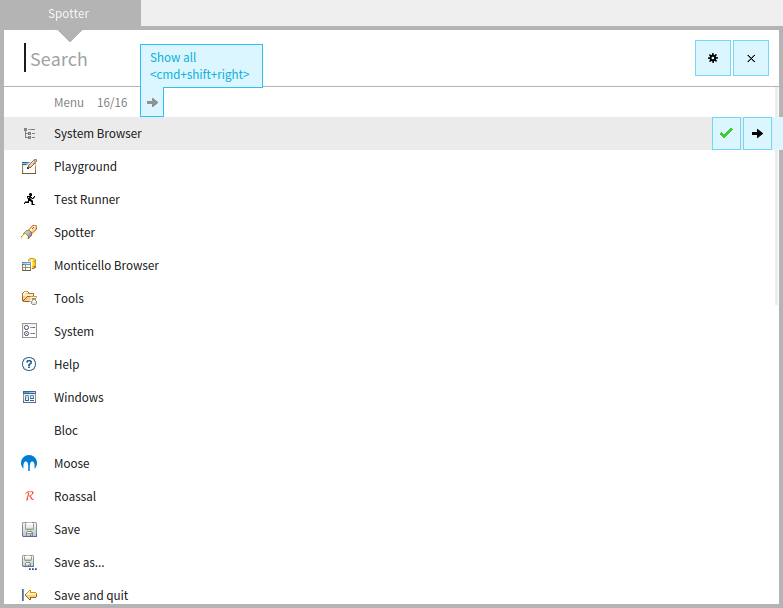
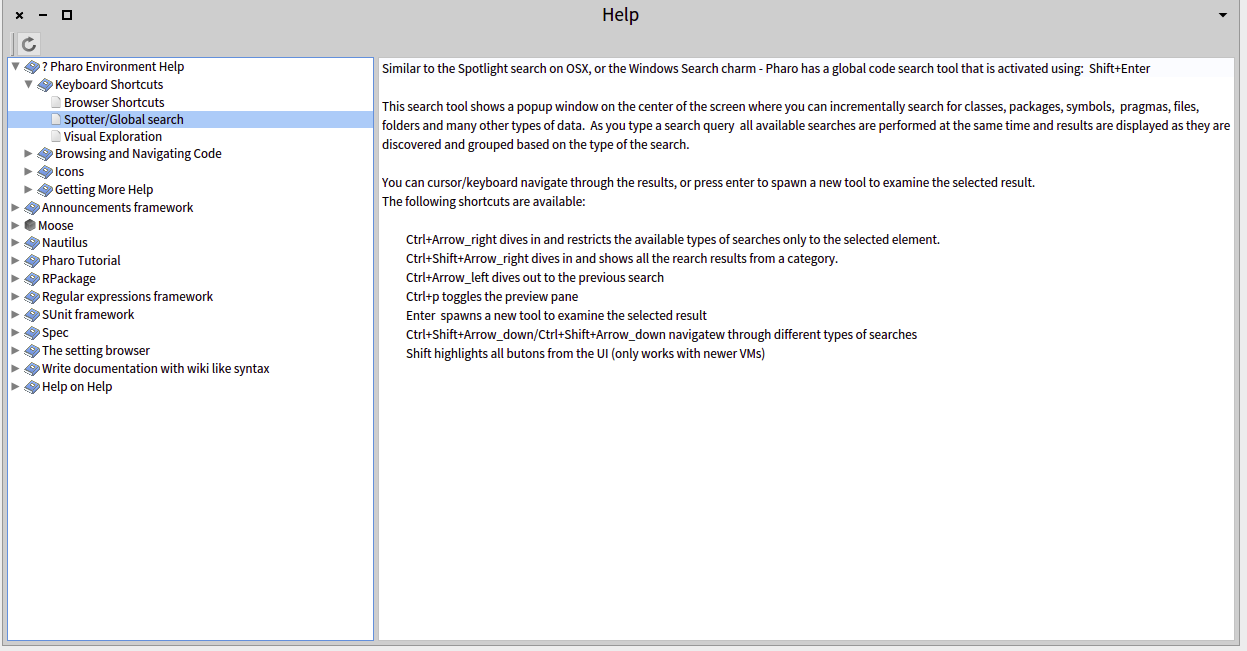
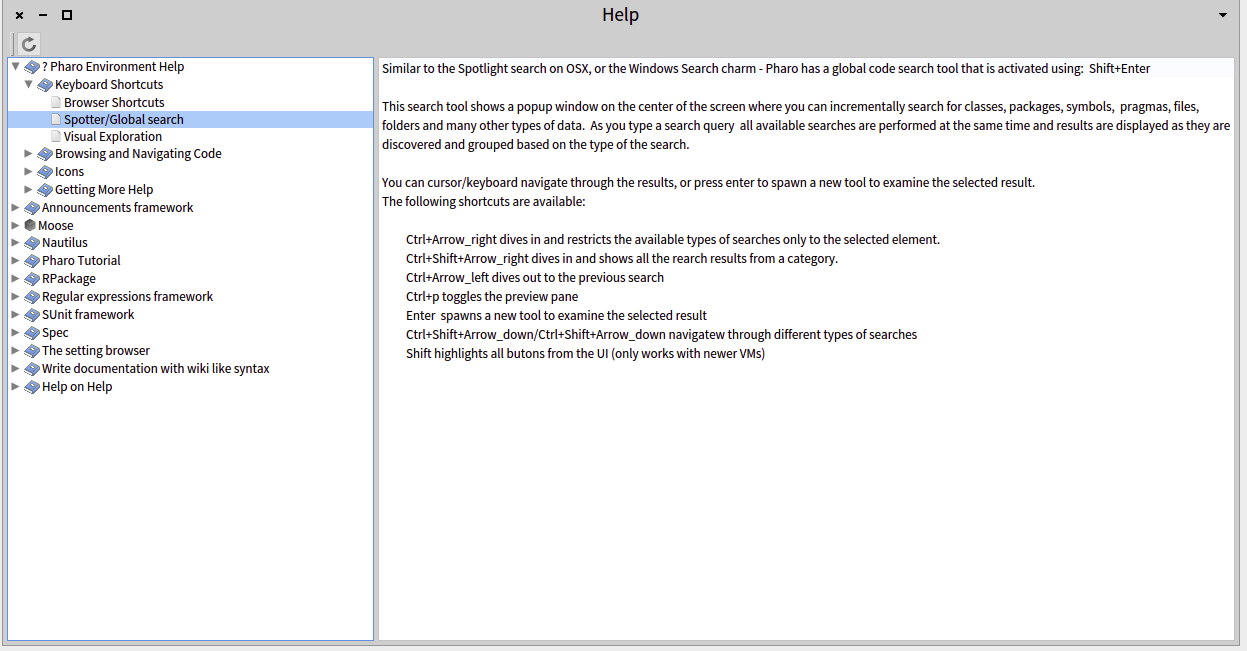
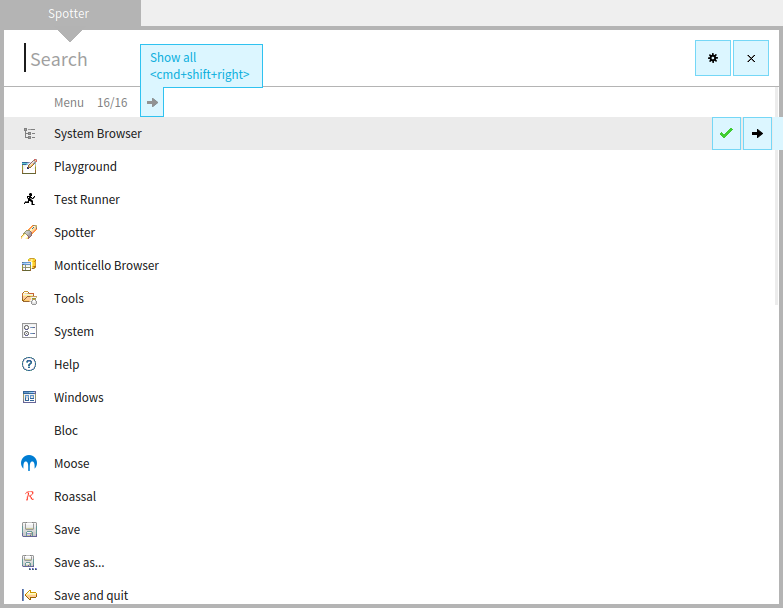
Yes, you right, shortcuts were quite hidden. However, after we received a lot of similar feedback we improved the situation with shortcuts. Now all actions in Spotter have explicit action buttons: [image: Inline image 1] As soon as you press "shift" (you can't not to press shift during usage of spotter) all action buttons are highlighted explicitly: [image: Inline image 2] If you hover action button for a few second a hint appears that tells which shortcut is assigned to an action. If you hover the button while pressing shift a hint appears immediately: [image: Inline image 3] Also, in Pharo help there is a good tutorial listing all Spotter shortcuts and assigned actions: [image: Inline image 4] How else can we improve discoverability of Spotter features? Cheers, Alex Cheers, Alex On Sun, Apr 5, 2015 at 2:35 AM, Ben Coman <btc@openinworld.com> wrote:
Thanks Aliaksei.
This is quite a hidden and implicit key stroke. Regardless that I know I've used it before follow a tutorial, I forgot it. Since Spotter has a <Settings Icon> (which I like and think it could be pushed as a standard throughout the system in Pharo 5), it might be useful for Pharo 4 if the Spotter Settings page contains a "How To" or "Keyboard shortcuts" item that just contains descriptive text. Or if there is no facility for that, perhaps a few of the keyboard shortcuts listed as individual items with descriptions, even if you can't change them. I think this will be useful for people presented with Spotter for the first time, particularly since first use already prompts users to go to settings to send usage data.
cheers -ben
On Sun, Apr 5, 2015 at 8:25 AM, Aliaksei Syrel <alex.syrel@gmail.com> wrote:
Hi Ben,
It's CMD+Shift+Right On Apr 5, 2015 2:23 AM, "Ben Coman" <btc@openinworld.com> wrote:
Just a note, I went back to an old image and really miss the Spotter workflow.
One thing, can you remind me how when it shows 5/30 implementors I get a list of all 30? I'm sure I've done this before but can't remember. Perhaps this means its not obvious and maybe should appear in a "How To Use" section in the Release Notes.
cheers -ben
On Sun, Apr 5, 2015 at 9:03 AM, Aliaksei Syrel <alex.syrel@gmail.com> wrote:
Hi Ben,
This is quite a hidden and implicit key stroke. Regardless that I know I've used it before follow a tutorial, I forgot it. Since Spotter has a <Settings Icon> (which I like and think it could be pushed as a standard throughout the system in Pharo 5), it might be useful for Pharo 4 if the Spotter Settings page contains a "How To" or "Keyboard shortcuts" item that just contains descriptive text. Or if there is no facility for that, perhaps a few of the keyboard shortcuts listed as individual items with descriptions, even if you can't change them. I think this will be useful for people presented with Spotter for the first time, particularly since first use already prompts users to go to settings to send usage data.
Yes, you right, shortcuts were quite hidden. However, after we received a lot of similar feedback we improved the situation with shortcuts. Now all actions in Spotter have explicit action buttons:
Cool. When I was looking at a results category down the page, I didn't notice the icon at the top (in the image shown next to 16/16) or in advance understand that it would move if I clicked in the category. I can understand the logic that it indicates which category the shortcut will apply to, however... * I'm not really going to be looking at a graphic UI component when using shortcut. I'll "just know" what it applies to. * To use the shortcut on other than the first category, it takes two actions: mouse-click the category *then* use the shortcut. If the icon appeared on each category, it would only need one action to just click the icon. (After I wrote this I see Sean had a similar issue, so I know its late. but can Pharo 4 get that icon per category, rather than just on the top category?)
As soon as you press "shift" (you can't not to press shift during usage of spotter) all action buttons are highlighted explicitly:
Nice feature, but actually I don't notice myself using <Shift> a lot (maybe I am under utilising the shortcuts) so this is catch-22 [1] - the feature may go unnoticed for newbies. Perhaps where the text entry is seeded with "Search", this could accommodate a tip more like "Search - hold shift to show functions/tooltips" [1] http://www.urbandictionary.com/define.php?term=Catch+22
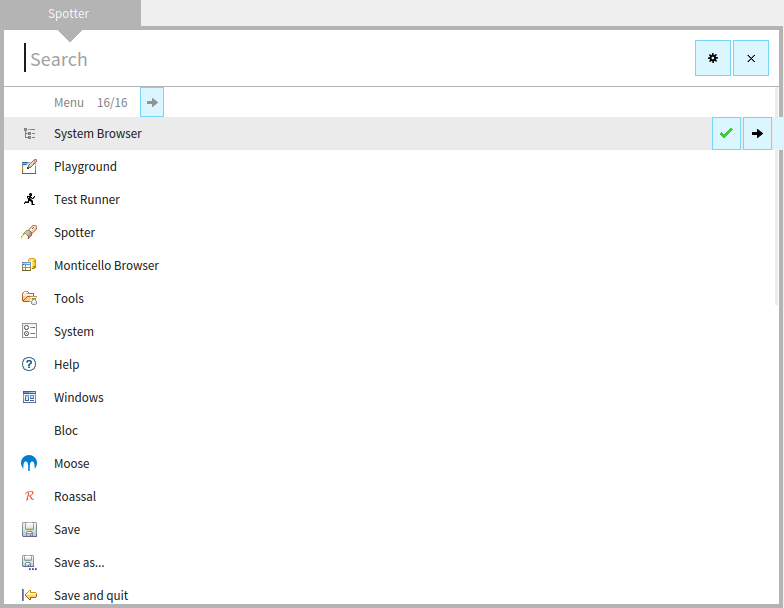
If you hover action button for a few second a hint appears that tells which shortcut is assigned to an action. If you hover the button while pressing shift a hint appears immediately:
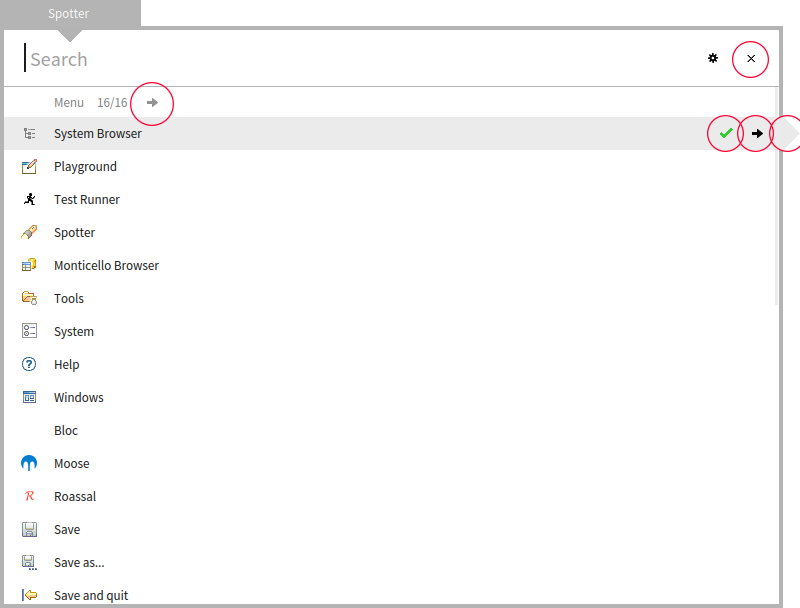
Also, in Pharo help there is a good tutorial listing all Spotter shortcuts and assigned actions:
This is good, but not immediately discoverable. Perhaps a button on the settings page could link to that page? cheers -ben
On Sun, Apr 5, 2015 at 2:35 AM, Ben Coman <btc@openinworld.com> wrote:
Thanks Aliaksei.
This is quite a hidden and implicit key stroke. Regardless that I know I've used it before follow a tutorial, I forgot it. Since Spotter has a <Settings Icon> (which I like and think it could be pushed as a standard throughout the system in Pharo 5), it might be useful for Pharo 4 if the Spotter Settings page contains a "How To" or "Keyboard shortcuts" item that just contains descriptive text. Or if there is no facility for that, perhaps a few of the keyboard shortcuts listed as individual items with descriptions, even if you can't change them. I think this will be useful for people presented with Spotter for the first time, particularly since first use already prompts users to go to settings to send usage data.
cheers -ben
On Sun, Apr 5, 2015 at 8:25 AM, Aliaksei Syrel <alex.syrel@gmail.com> wrote:
Hi Ben,
It's CMD+Shift+Right On Apr 5, 2015 2:23 AM, "Ben Coman" <btc@openinworld.com> wrote:
Just a note, I went back to an old image and really miss the Spotter workflow.
One thing, can you remind me how when it shows 5/30 implementors I get a list of all 30? I'm sure I've done this before but can't remember. Perhaps this means its not obvious and maybe should appear in a "How To Use" section in the Release Notes.
cheers -ben

aliaksei what would be nice is that each time we click on a button or press a command key you emit a growl notification with the description. Stef Le 5/4/15 03:03, Aliaksei Syrel a écrit :
Hi Ben,
This is quite a hidden and implicit key stroke. Regardless that I know I've used it before follow a tutorial, I forgot it. Since Spotter has a <Settings Icon> (which I like and think it could be pushed as a standard throughout the system in Pharo 5), it might be useful for Pharo 4 if the Spotter Settings page contains a "How To" or "Keyboard shortcuts" item that just contains descriptive text. Or if there is no facility for that, perhaps a few of the keyboard shortcuts listed as individual items with descriptions, even if you can't change them. I think this will be useful for people presented with Spotter for the first time, particularly since first use already prompts users to go to settings to send usage data.
Yes, you right, shortcuts were quite hidden. However, after we received a lot of similar feedback we improved the situation with shortcuts. Now all actions in Spotter have explicit action buttons: Inline image 1
As soon as you press "shift" (you can't not to press shift during usage of spotter) all action buttons are highlighted explicitly: Inline image 2
If you hover action button for a few second a hint appears that tells which shortcut is assigned to an action. If you hover the button while pressing shift a hint appears immediately:
Inline image 3
Also, in Pharo help there is a good tutorial listing all Spotter shortcuts and assigned actions: Inline image 4
How else can we improve discoverability of Spotter features?
Cheers, Alex
Cheers, Alex
On Sun, Apr 5, 2015 at 2:35 AM, Ben Coman <btc@openinworld.com <mailto:btc@openinworld.com>> wrote:
Thanks Aliaksei.
This is quite a hidden and implicit key stroke. Regardless that I know I've used it before follow a tutorial, I forgot it. Since Spotter has a <Settings Icon> (which I like and think it could be pushed as a standard throughout the system in Pharo 5), it might be useful for Pharo 4 if the Spotter Settings page contains a "How To" or "Keyboard shortcuts" item that just contains descriptive text. Or if there is no facility for that, perhaps a few of the keyboard shortcuts listed as individual items with descriptions, even if you can't change them. I think this will be useful for people presented with Spotter for the first time, particularly since first use already prompts users to go to settings to send usage data.
cheers -ben
On Sun, Apr 5, 2015 at 8:25 AM, Aliaksei Syrel <alex.syrel@gmail.com <mailto:alex.syrel@gmail.com>> wrote:
Hi Ben,
It's CMD+Shift+Right
On Apr 5, 2015 2:23 AM, "Ben Coman" <btc@openinworld.com <mailto:btc@openinworld.com>> wrote:
Just a note, I went back to an old image and really miss the Spotter workflow.
One thing, can you remind me how when it shows 5/30 implementors I get a list of all 30? I'm sure I've done this before but can't remember. Perhaps this means its not obvious and maybe should appear in a "How To Use" section in the Release Notes.
cheers -ben
On Sun, Apr 5, 2015 at 11:37 PM, stepharo <stepharo@free.fr> wrote:
aliaksei
what would be nice is that each time we click on a button or press a command key you emit a growl notification with the description.
Stef
For just a moment there, I thought you wanted Spotter to start making bear noises? *grin*

Am 05.04.2015 um 19:09 schrieb Ben Coman <btc@openinworld.com>:
On Sun, Apr 5, 2015 at 11:37 PM, stepharo <stepharo@free.fr <mailto:stepharo@free.fr>> wrote: aliaksei
what would be nice is that each time we click on a button or press a command key you emit a growl notification with the description.
Stef
For just a moment there, I thought you wanted Spotter to start making bear noises? *grin*
Me, too. But the moment didn't finish yet Norbert

The problem of people like a tool too much you get a ton of feature requests :D I don't envy those poor developers.

On 05 Apr 2015, at 17:37, stepharo <stepharo@free.fr> wrote:
aliaksei
what would be nice is that each time we click on a button or press a command key you emit a growl notification with the description.
for debug, I suppose? because otherwise is too much pollution⦠tooltips are created for that and I think they do right their job. Esteban
Stef
Le 5/4/15 03:03, Aliaksei Syrel a écrit :
Hi Ben,
This is quite a hidden and implicit key stroke. Regardless that I know I've used it before follow a tutorial, I forgot it. Since Spotter has a <Settings Icon> (which I like and think it could be pushed as a standard throughout the system in Pharo 5), it might be useful for Pharo 4 if the Spotter Settings page contains a "How To" or "Keyboard shortcuts" item that just contains descriptive text. Or if there is no facility for that, perhaps a few of the keyboard shortcuts listed as individual items with descriptions, even if you can't change them. I think this will be useful for people presented with Spotter for the first time, particularly since first use already prompts users to go to settings to send usage data.
Yes, you right, shortcuts were quite hidden. However, after we received a lot of similar feedback we improved the situation with shortcuts. Now all actions in Spotter have explicit action buttons: <Mail Attachment.png>
As soon as you press "shift" (you can't not to press shift during usage of spotter) all action buttons are highlighted explicitly: <Mail Attachment.png>
If you hover action button for a few second a hint appears that tells which shortcut is assigned to an action. If you hover the button while pressing shift a hint appears immediately:
<Mail Attachment.png>
Also, in Pharo help there is a good tutorial listing all Spotter shortcuts and assigned actions: <Mail Attachment.png>
How else can we improve discoverability of Spotter features?
Cheers, Alex
Cheers, Alex
On Sun, Apr 5, 2015 at 2:35 AM, Ben Coman <btc@openinworld.com <mailto:btc@openinworld.com>> wrote: Thanks Aliaksei.
This is quite a hidden and implicit key stroke. Regardless that I know I've used it before follow a tutorial, I forgot it. Since Spotter has a <Settings Icon> (which I like and think it could be pushed as a standard throughout the system in Pharo 5), it might be useful for Pharo 4 if the Spotter Settings page contains a "How To" or "Keyboard shortcuts" item that just contains descriptive text. Or if there is no facility for that, perhaps a few of the keyboard shortcuts listed as individual items with descriptions, even if you can't change them. I think this will be useful for people presented with Spotter for the first time, particularly since first use already prompts users to go to settings to send usage data.
cheers -ben
On Sun, Apr 5, 2015 at 8:25 AM, Aliaksei Syrel <alex.syrel@gmail.com <mailto:alex.syrel@gmail.com>> wrote: Hi Ben,
It's CMD+Shift+Right
On Apr 5, 2015 2:23 AM, "Ben Coman" <btc@openinworld.com <mailto:btc@openinworld.com>> wrote: Just a note, I went back to an old image and really miss the Spotter workflow.
One thing, can you remind me how when it shows 5/30 implementors I get a list of all 30? I'm sure I've done this before but can't remember. Perhaps this means its not obvious and maybe should appear in a "How To Use" section in the Release Notes.
cheers -ben
On 05 Apr 2015, at 17:37, stepharo <stepharo@free.fr <mailto:stepharo@free.fr>> wrote:
aliaksei
what would be nice is that each time we click on a button or press a command key you emit a growl notification with the description.
for debug, I suppose?
To learn the key combinaison. You could make sure that after a couple of the same use you do not show it anymore.
because otherwise is too much pollution⦠tooltips are created for that and I think they do right their job.
Emacs is doing that really well. How to learn key-bindings.... simple show them to the user. Stef
On 06 Apr 2015, at 18:06, stepharo <stepharo@free.fr> wrote:
On 05 Apr 2015, at 17:37, stepharo <stepharo@free.fr <mailto:stepharo@free.fr>> wrote:
aliaksei
what would be nice is that each time we click on a button or press a command key you emit a growl notification with the description.
for debug, I suppose?
To learn the key combinaison. You could make sure that after a couple of the same use you do not show it anymore.
because otherwise is too much pollution⦠tooltips are created for that and I think they do right their job.
Emacs is doing that really well. How to learn key-bindings.... simple show them to the user.
some time ago I suggested Guille implement something like that. But not a growl announcement, that would be too disruptive: just like an emacs menu⦠there were some problems at the moment to implement it (and the fact that he was doing his phd and I was, as always, running with something else didnât helped). cheers, Esteban
Stef

This reminds me - who wants to write a section (or a chapter) on Spotter, for the updated Pharo By Example book? :) (The issue for discussing or committing against is here: https://github.com/SquareBracketAssociates/UpdatedPharoByExample/issues/31 ). It seems like an amazing tool and an important part of Pharo 4 workflow, so we should definitely encourage new developers to use it. On Sat, Apr 4, 2015 at 9:03 PM, Aliaksei Syrel <alex.syrel@gmail.com> wrote:
Hi Ben,
This is quite a hidden and implicit key stroke. Regardless that I know I've used it before follow a tutorial, I forgot it. Since Spotter has a <Settings Icon> (which I like and think it could be pushed as a standard throughout the system in Pharo 5), it might be useful for Pharo 4 if the Spotter Settings page contains a "How To" or "Keyboard shortcuts" item that just contains descriptive text. Or if there is no facility for that, perhaps a few of the keyboard shortcuts listed as individual items with descriptions, even if you can't change them. I think this will be useful for people presented with Spotter for the first time, particularly since first use already prompts users to go to settings to send usage data.
Yes, you right, shortcuts were quite hidden. However, after we received a lot of similar feedback we improved the situation with shortcuts. Now all actions in Spotter have explicit action buttons: [image: Inline image 1]
As soon as you press "shift" (you can't not to press shift during usage of spotter) all action buttons are highlighted explicitly: [image: Inline image 2]
If you hover action button for a few second a hint appears that tells which shortcut is assigned to an action. If you hover the button while pressing shift a hint appears immediately:
[image: Inline image 3]
Also, in Pharo help there is a good tutorial listing all Spotter shortcuts and assigned actions: [image: Inline image 4]
How else can we improve discoverability of Spotter features?
Cheers, Alex
Cheers, Alex
On Sun, Apr 5, 2015 at 2:35 AM, Ben Coman <btc@openinworld.com> wrote:
Thanks Aliaksei.
This is quite a hidden and implicit key stroke. Regardless that I know I've used it before follow a tutorial, I forgot it. Since Spotter has a <Settings Icon> (which I like and think it could be pushed as a standard throughout the system in Pharo 5), it might be useful for Pharo 4 if the Spotter Settings page contains a "How To" or "Keyboard shortcuts" item that just contains descriptive text. Or if there is no facility for that, perhaps a few of the keyboard shortcuts listed as individual items with descriptions, even if you can't change them. I think this will be useful for people presented with Spotter for the first time, particularly since first use already prompts users to go to settings to send usage data.
cheers -ben
On Sun, Apr 5, 2015 at 8:25 AM, Aliaksei Syrel <alex.syrel@gmail.com> wrote:
Hi Ben,
It's CMD+Shift+Right On Apr 5, 2015 2:23 AM, "Ben Coman" <btc@openinworld.com> wrote:
Just a note, I went back to an old image and really miss the Spotter workflow.
One thing, can you remind me how when it shows 5/30 implementors I get a list of all 30? I'm sure I've done this before but can't remember. Perhaps this means its not obvious and maybe should appear in a "How To Use" section in the Release Notes.
cheers -ben

Ben Coman wrote
One thing, can you remind me how when it shows 5/30 implementors I get a list of all 30?
One strange thing is that the arrow in "[category] x/yy ->" only appears in the top category, so you can't go to the second or third category and click it. ----- Cheers, Sean -- View this message in context: http://forum.world.st/Spotter-tp4817609p4817623.html Sent from the Pharo Smalltalk Developers mailing list archive at Nabble.com.
participants (8)
-
 Aliaksei Syrel
 -
 Ben Coman
 -
 Dmitri Zagidulin
 -
 Esteban Lorenzano
 -
 kilon alios
 -
 Norbert Hartl
 -
 Sean P. DeNigris
 -
 stepharo