Re: [Pharo-dev] Improving Pharo By Example

In section 1.9 page 18 there is this text "At other times you may have a good idea that a method exists, but will have no idea what it might be called. The method finder can still help! For example, suppose that you would like to find a method that turns a string into upper case, for example, it would translate 'eureka' into 'EUREKA'. The method finder will suggest a method that does what you want.8 An asterisk at the beginning of a line in the right pane of the method finder indicates that this method is the one that was actually used to obtain the requested result. So, the asterisk in front of String asUppercase lets us know that the method asUppercase defined on the class String was executed and returned the result we wanted. The methods that do not have an asterisk are just the other methods that have the same name as the ones that returned the expected result. So Character»asUppercase was not executed on our example, because 'eureka' is not a Character object. You can also use the method finder for methods with arguments; for example, if you are looking for a method that will find the greatest common factor of two integers, you might try 25. 35. 5 as an example. You can also give the method finder multiple examples to narrow the search space; the help text in the bottom pane explains how. " I tried " 'eureka' . 'EUREKA '" and the other suggestion it does not seem to work , should I remove this section ? On Tue, May 20, 2014 at 12:17 AM, kilon alios <kilon.alios@gmail.com> wrote:
thanks Damien
On Tue, May 20, 2014 at 12:10 AM, Damien Cassou <damien.cassou@gmail.com>wrote:
A quick tour of quick
In this chapter we will give you a high-level tour of to help you get comfortable with the environment. There will be plenty of opportunities to try things out, so it would be a good idea if you have a computer handy when you read this chapter.
We will use this icon: to mark places in the text where you should try something out in . In particular, you will fire up , learn about the different ways of interacting with the system, and discover some of the basic tools. You will also learn how to define a new method, create an object and send it messages.
Getting started
is available as a free download from . There are three parts that you will need to download, consisting of four files (see download).
The virtual machine (VM) is the only part of the system that is different for each operating system and processor. Pre-compiled virtual machines are available for all the major computing environments. In download we see the VM for the selected platform is called Pharo.exe.
The sources file contains the source code for all of the parts of that don't change very frequently. In download it is called SqueakV39.sources.
The current system image is a snapshot of a running system, frozen in time. It consists of two files: an .image file, which contains the state of all of the objects in the system (including classes and methods, since they are objects too), and a .changes file, which contains a log of all of the changes to the source code of the system. In download, these files are called pharo.image and pharo.changes.
Download and install on your computer. We recommend that you use the image provided on the by Example web page.
sbeImage
Most of the introductory material in this book will work with any version, so if you already have one installed, you may as well continue to use it. However, if you notice differences between the appearance or behaviour of your system and what is described here, do not be surprised.
As you work in , the image and changes files are modified, so you need to make sure that they are writable. Always keep these two files together. Never edit them directly with a text editor, as uses them to store the objects you work with and to log the changes you make to the source code. It is a good idea to keep a backup copy of the downloaded image and changes files so you can always start from a fresh image and reload your code.
The sources file and the VM can be read-only---they can be shared between different users. All of these files can be placed in the same directory, but it is also possible to put the Virtual Machine and sources file in separate directory where everyone has access to them. Do whatever works best for your style of working and your operating system.
Launching. To start , do whatever your operating system expects: drag the .image file onto the icon of the virtual machine, or double-click the .image file, or at the command line type the name of the virtual machine followed by the path to the .image file. (When you have multiple VMs installed on your machine the operating system may not automatically pick the right one; in this case it is safer to drag and drop the image onto the virtual machine, or to use the command line.)
Once is running, you should see a single large window, possibly containing some open workspace windows (see startup), and it's not obvious how to proceed! You might notice a menu bar, but mainly makes use of context-dependent pop-up menus.
Start . You can dismiss any open workspaces by ing on the red button in the top left corner of the workspace window.
You can minimize windows (so that they move to the dock on the bottom of the screen) by ing on the orange button. Clicking on the green button will cause the window to take up the entire screen.
First Interaction.
A good place to get started is the world menu shown in threeButtons:click.
Click with the mouse on the background of the main window to show the world menu, then choose Workspace to create a new workspace.
morphic haloMorphic
was originally designed for a computer with a three button mouse. If your mouse has fewer than three buttons, you will have to press extra keys while ing the mouse to simulate the extra buttons. A two-button mouse works quite well with , but if you have only a single-button mouse, you should seriously consider buying a two-button mouse with a clickable scroll wheel: it will make working with much more pleasant.
avoids terms like ``left mouse click'' because different computers, mice, keyboards and personal configurations mean that different users will need to press different physical buttons to achieve the same effect. Originally introduced colours to stand for the different mouse buttons.
Since many users will use various modifiers keys (control, ALT, meta ) to achieve the same effect, we will instead use the following terms:
[:] this is the most often used mouse button, and is normally equivalent to ing a single-mouse button without any modifier key; on the image to bring up the ``World'' menu (threeButtons:click). [:] this is the next most used button; it is used to bring up a contextual menu, that is, a menu that offers different sets of actions depending on where the mouse is pointing; see threeButtons:actclick. If you do not have a multi-button mouse, then normally you will configure the control modifier key to with the mouse button. [:] Finally, you may on any object displayed in the image to activate the ``morphic Morphichalo'', an array of handles that are used to perform operations on the on-screen objects themselves, such as rotating them or resizing them; see threeButtons:metaclick. If you let the mouse linger over a handle, a help balloon will explain its function. In , how you depends on your operating system: either you must hold shift ctrl or shift option while clicking.
Type Time now in the workspace. Now in the workspace. Select print it.
We recommend that right-handed people configure their mouse to with the left button, with the right button, and with the clickable scroll wheel, if one is available.
If you are using a Macintosh without a second mouse button, you can simulate one by holding down the key while ing the mouse. However, if you are going to be using at all often, we recommend investing in a mouse with at least two buttons.
You can configure your mouse to work the way you want by using the preferences of your operating system and mouse driver. How can I get meta-click without a three-finger salute? Is this a secret? has some preferences for customising the mouse and the meta keys on your keyboard. In the preference browser (System Preferences Preference Browser), the keyboard category contains an option swapControlAndAltKeys that switches the and functions. There are also options to duplicate the various command keys.
The World menu
again on the background. You will see the World menu again. Most menus are not modal; you can leave them on the screen for as long as you wish by ing the push pin icon in the top-right corner. Do this.
The world menu provides you a simple means to access many of the tools that offers.
Have a closer look at the World and Tools menus. (threeButtons:click)
You will see a list of several of the core tools in , including the browser and the workspace. We will encounter most of them in the coming chapters.
Sending messages
Open a workspace. Type in the following text:
BouncingAtomsMorph new openInWorld
Now . A menu should appear. Select do it (d). (See doit.)
A window containing a large number of bouncing atoms should open in the top left of the image.
You have just evaluated your first expression! You just sent the message new to the class, resulting in a new instance, followed by the message openInWorld to this instance. The class decided what to do with the new message, that is, it looked up its methods for handling new message and reacted appropriately. Similarly the instance looked up its method for responding to openInWorld and took appropriate action.
If you talk to Smalltalkers for a while, you will quickly notice that they generally do not use expressions like ``call an operation'' or ``invoke a method'', but instead they will say ``send a message''. This reflects the idea that objects are responsible for their own actions. You never tell an object what to do---instead you politely ask it to do something by sending it a message. The object, not you, selects the appropriate method for responding to your message.
Saving, quitting and restarting a session
Now on the bouncing atoms window and drag it anywhere you like. You now have the demo ``in hand''. Put it down by ing anywhere.
Select WorldSave as , enter the name ``myPharo'', and on the OK button. Now select WorldSave and quit.
Now if you go to the location where the original image and changes files were, you will find two new files called ``myPharo.image'' and ``myPharo.changes'' that represent the working state of the image at the moment before you told to Save and quit. If you wish, you can move these two files anywhere that you like on your disk, but if you do so you may (depending on your operating system) need to also move, copy or link to the virtual machine and the sources file.
Start up from the newly created ``myPharo.image'' file.
Now you should find yourself in precisely the state you were when you quit . The is there again and the atoms continue to bounce from where they were when you quit.
When you start for the first time, the virtual machine loads the image file that you provide. This file contains a snapshot of a large number of objects, including a vast amount of pre-existing code and a large number of programming tools (all of which are objects). As you work with , you will send messages to these objects, you will create new objects, and some of these objects will die and their memory will be reclaimed (garbage-collected).
When you quit , you will normally save a snapshot that contains all of your objects. If you save normally, you will overwrite your old image file with the new snapshot. Alternatively, you may save the image under a new name, as we just did.
In addition to the .image file, there is also a .changes file. This file contains a log of all the changes to the source code that you have made using the standard tools. Most of the time you do not need to worry about this file at all. As we shall see, however, the .changes file can be very useful for recovering from errors, or replaying lost changes. More about this later!
The image that you have been working with is a descendant of the original image created in the late 1970s. Some of these objects have been around for decades!
You might think that the image is the key mechanism for storing and managing software projects, but you would be wrong. As we shall see very soon, there are much better tools for managing code and sharing software developed by teams. Images are very useful, but you should learn to be very cavalier about creating and throwing away images, since tools like Monticello offer much better ways to manage versions and share code amongst developers.
Using the mouse (and the appropriate modifier keys), on the . You will see a collection of colored circles that are collectively called the morphic Morphichalo. Each circle is called a handle. Click in the pink handle containing the cross; the should go away.
Workspaces and Transcripts transcript
Close all open windows. Open a transcript and a workspace. (The transcript can be opened from the WorldTools ... submenu.)
Position and resize the transcript and workspace windows so that the workspace just overlaps the transcript. You can resize windows either by dragging one of the corners, or by ing the window to bring up the morphic halo, and dragging the yellow (bottom right) handle.
At any time only one window is active; it is in front and has its border highlighted.
The transcript is an object that is often used for logging system messages. It is a kind of ``system console''.
Workspaces are useful for typing snippets of code that you would like to experiment with. You can also use workspaces simply for typing arbitrarily text that you would like to remember, such as to-do lists or instructions for anyone who will use your image. Workspaces are often used to hold documentation about a captured image, as is the case with the standard image that we downloaded earlier (see startup).
Type the following text into the workspace:
Transcript show: 'hello world'; cr.
Try double-ing in the workspace at various points in the text you have just typed. Notice how an entire word, entire string, or the whole text is selected, depending on whether you within a word, at the end of the string, or at the end of the entire expression.
Select the text you have typed and . Select do it (d). Notice how the text ``hello world'' appears in the transcript window (helloworld). Do it again. (The (d) in the menu item do it (d) tells you that the keyboard shortcut to do it is d. More on this in the next section!)
Keyboard shortcuts
If you want to evaluate an expression, you do not always have to . Instead, you can use keyboard shortcuts. These are the parenthesized expressions in the menu. Depending on your platform, you may have to press one of the modifier keys (control, alt, command, or meta). (We will indicate these generically as key.)
Evaluate the expression in the workspace again, but using the keyboard shortcut: d.
In addition to do it, you will have noticed print it, inspect it and explore it. Let's have a quick look at each of these.
Type the expression 3 + 4 into the workspace. Now do it with the keyboard shortcut.
Do not be surprised if you saw nothing happen! What you just did is send the message + with argument 4 to the number 3. Normally the result 7 will have been computed and returned to you, but since the workspace did not know what to do with this answer, it simply threw the answer away. If you want to see the result, you should print it instead. print it actually compiles the expression, executes it, sends the message printString to the result, and displays the resulting string.
Select 3+4 and print it (p). This time we see the result we expect (printit).
3 @TEST 3 + 4 --> 7
We use the notation --> as a convention in this book to indicate that a particular expression yields a given result when you print it.
Delete the highlighted text ``7'' (should have selected it for you, so you can just press the delete key). Select 3+4 again and this time inspect it (i).
Now you should see a new window, called an inspector, with the heading SmallInteger: 7 (inspectit). The inspector is an extremely useful tool that will allow you to browse and interact with any object in the system. The title tells us that 7 is an instance of the class SmallInteger. The left panel allows us to browse the instance variables of an object, the values of which are shown in the right panel. The bottom panel can be used to write expressions to send messages to the object.
Type self squared in the bottom panel of the inspector on 7 and print it.
2 Close the inspector. Type the expression Object in a workspace and this time explore it (I, uppercased i).
This time you should see a window labelled Object containing the text root: Object. Click on the triangle to open it up (exploreit).
The explorer is similar to the inspector, but it offers a tree view of a complex object. In this case the object we are looking at is the Object class. We can see directly all the information stored in this class, and we can easily navigate to all its parts.
The Class Browser
The class browser is one of the key tools used for programming. As we shall see, there are several interesting browsers available for , but this is the basic one you will find in any image. class browserbrowser
Open a browser by selecting World Class browser.
We can see a browser in classBrowser. The title bar indicates that we are browsing the class Object.
When the browser first opens, all panes are empty but the leftmost one. This first pane lists all known packages, which contain groups of related classes.
Click on the Kernel package. This causes the second pane to show a list of all of the classes in the selected package.
Select the class Object. Now the remaining two panes will be filled with text. The third pane displays the protocols of the currently selected class. These are convenient groupings of related methods. If no protocol is selected you should see all methods in the fourth pane.
Select the printing protocol. You may have to scroll down to find it. Now you will see in the fourth pane only methods related to printing.
Select the ObjectprintString method. Now we see in the bottom pane the source code of the printString method, shared by all objects in the system (except those that override it).
Finding classes
There are several ways to find a class in . The first, as we have just seen above, is to know (or guess) what category it is in, and to navigate to it using the browser.
browser!finding classesclass, finding
A second way is to send the browse message to the class, asking it to open a browser on itself. Suppose we want to browse the class Boolean.
Type Boolean browse into a workspace and do it. A browser will open on the Boolean class (browseBoolean). There is also a keyboard shortcut b (browse) that you can use in any tool where you find a class name;
select the name and type b.
Use the keyboard shortcut to browse the class Boolean.
Notice that when the Boolean class is selected but no protocol or method is selected, instead of the source code of a method, we see a class definition (browseBoolean). This is nothing more than an ordinary message that is sent to the parent class, asking it to create a subclass. Here we see that the class Object is being asked to create a subclass named Boolean with no instance variables, class variables or ``pool dictionaries'', and to put the class Boolean in the Kernel-Objects category.
If you on the ? at the bottom of the class pane, you can see the class classcomment in a dedicated pane (see classComment).
Often, the fastest way to find a class is to search for it by name. For example, suppose that you are looking for some unknown class that represents dates and times.
Put the mouse in the package pane of the browser and type f, or select find class (f) by ing. Type ``time'' in the dialog box and accept it.
You will be presented with a list of classes whose names contain ``time'' (see findit). Choose one, say, Time, and the browser will show it, along with a class comment that suggests other classes that might be useful. If you want to browse one of the others, select its name (in any text pane), and type b.
Note that if you type the complete (and correctly capitalized) name of a class in the find dialog, the browser will go directly to that class without showing you the list of options.
Finding methods quick:methodFinder
Sometimes you can guess the name of a method, or at least part of the name of a method, more easily than the name of a class. For example, if you are interested in the current time, you might expect that there would be a method called ``now'', or containing ``now'' as a substring. But where might it be? The method finder can help you. browser!finding methodsmethod, finding
Select World Tools ... Method finder. Type ``now'' in the top left pane, and accept it (or just press the return key). The method finder will display a list of all the method names that contain the substring ``now''. To scroll to now itself, move the cursor to the list and type ``n''; this trick works in all scrolling windows. Select ``now'' and the right-hand pane shows you the classes that define a method with this name, as shown in MethodFinder. Selecting any one of them will open a browser on it.
At other times you may have a good idea that a method exists, but will have no idea what it might be called. The method finder can still help! For example, suppose that you would like to find a method that turns a string into upper case, for example, it would translate 'eureka' into 'EUREKA'.
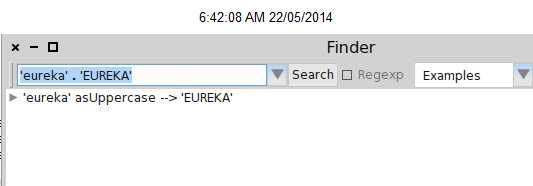
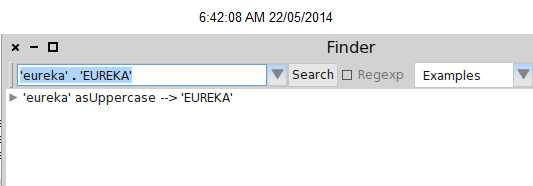
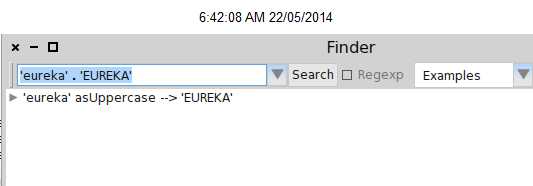
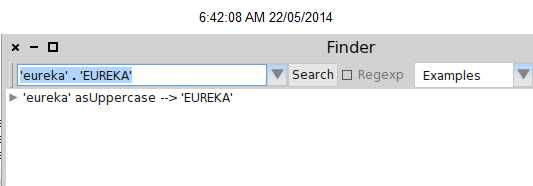
Type 'eureka' . 'EUREKA' into the method finder and press the return key, as shown in methodFinder-example1.
The method finder will suggest a method that does what you want.
An asterisk at the beginning of a line in the right pane of the method finder indicates that this method is the one that was actually used to obtain the requested result. So, the asterisk in front of String asUppercase lets us know that the method StringasUppercase defined on the class String was executed and returned the result we wanted. The methods that do not have an asterisk are just the other methods that have the same name as the ones that returned the expected result. So CharacterasUppercase was not executed on our example, because 'eureka' is not a Character object.
You can also use the method finder for methods with arguments; for example, if you are looking for a method that will find the greatest common factor of two integers, you might try 25. 35. 5 as an example. You can also give the method finder multiple examples to narrow the search space; the help text in the bottom pane explains how.
Defining a new method
The advent of Test Driven Development (TDD) has changed the way that we write code. The idea behind TDD is that we write a test that defines the desired behaviour of our code before we write the code itself. Only then do we write the code that satisfies the test. Behavior Driven DevelopmentTest Driven Development
Suppose that our assignment is to write a method that ``says something loudly and with emphasis''. What exactly could that mean? What would be a good name for such a method? How can we make sure that programmers who may have to maintain our method in the future have an unambiguous description of what it should do? We can answer all of these questions by giving an example:
When we send the message shout to the string ``Don't panic'' the result should be ``DON'T PANIC!''.
To make this example into something that the system can use, we turn it into a test method:
3 [testShout]A test for a shout method testShout self assert: ('Don''t panic' shout = 'DON''T PANICBANG')
How do we create a new method in ? First, we have to decide which class the method should belong to. In this case, the shout method that we are testing will go in class String, so the corresponding test will, by convention, go in a class called StringTest.
Open a browser on the class StringTest, and select an appropriate protocol for our method, in this case tests - converting, as shown in newMethodTemplate. The highlighted text in the bottom pane is a template that reminds you what a method looks like. Delete this and enter the code from testShout. Once you have typed the text into the browser, notice that the bottom pane is outlined in red. This is a reminder that the pane contains unsaved changes. So select accept (s) by ing in the bottom pane, or just type s, to compile and save your method.
accept itkeyboard shortcut, accept
If this is the first time you have accepted any code in your image, you will likely be prompted to enter your name. Since many people have contributed code to the image, it is important to keep track of everyone who creates or modifies methods. Simply enter your first and last names, without any spaces, or separated by a dot.
Because there is as yet no method called shout, the browser will ask you to confirm that this is the name that you really want---and it will suggest some other names that you might have intended (testShoutConfirm). This can be quite useful if you have merely made a typing mistake, but in this case, we really do mean shout, since that is the method we are about to create, so we have to confirm this by selecting the first option from the menu of choices, as shown in testShoutConfirm.
Run your newly created test: open the SUnit TestRunner from the World menu.
The leftmost two panes are a bit like the top panes in the browser. The left pane contains a list of categories, but it's restricted to those categories that contain test classes.
Select CollectionsTests-Text and the pane to the right will show all of the test classes in that category, which includes the class StringTest. The names of the classes are already selected, so Run Selected to run all these tests.
You should see a message like that shown in testRunnerTestShout, which indicates that there was an error in running the tests. The list of tests that gave rise to errors is shown in the bottom right pane; as you can see, StringTest>>>#testShout is the culprit. (Note that StringTest>>>#testShout is the Smalltalk convention to identify the StringTesttestShout method of the StringTest class.) If you on that line of text, the erroneous test will run again, this time in such a way that you see the error happen: ``MessageNotUnderstood: ByteString>>>shout''.
Behavior, >> Behavior>>
The window that opens with the error message is the debugger (see predebugger).
We will look at the debugger and how to use it in env.
The error is, of course, exactly what we expected: running the test generates an error because we haven't yet written a method that tells strings how to shout. Nevertheless, it's good practice to make sure that the test fails because this confirms that we have set up the testing machinery correctly and that the new test is actually being run. Once you have seen the error, you can Abandon the running test, which will close the debugger window. Note that often with Smalltalk you can define the missing method using the Create button, edit the newly-created method in the debugger, and then Proceed with the test.
Now let's define the method that will make the test succeed!
Select class String in the browser, select the converting protocol, type the text in shout over the method creation template, and accept it. (Note: to get a ^, type ). [shout]The shout method shout ^ self asUppercase, 'BANG'
The comma is the string concatenation operation, so the body of this method appends an exclamation mark to an upper-case version of whatever String object the shout message was sent to. The tells that the expression that follows is the answer to be returned from the method, in this case the new concatenated string. commaCollection, comma operator
Does this method work? Let's run the tests and see.
Click on Run Selected again in the test runner, and this time you should see a green bar and text indicating that all of the tests ran with no failures and no errors. When you get to a green bar, it's a good idea to save your work and take a break. So do that right now!
Chapter summary This chapter has introduced you to the environment and shown you how to use some of the major tools, such as the browser, the method finder, and the test runner. You have also seen a little of syntax, even though you may not understand it all yet.
A running system consists of a virtual machine, a sources file, and image and changes files. Only these last two change, as they record a snapshot of the running system. When you restore a image, you will find yourself in exactly the same state---with the same running objects---that you had when you last saved that image. is designed to work with a three-button mouse to , or . If you don't have a three-button mouse, you can use modifier keys to obtain the same effect. You on the background to bring up the World menu and launch various tools. A workspace is a tool for writing and evaluating snippets of code. You can also use it to store arbitrary text. You can use keyboard shortcuts on text in the workspace, or any other tool, to evaluate code. The most important of these are do it (d), print it (p), inspect it (i), explore it (I) and browse it (b).
The browser is the main tool for browsing code, and for developing new code. The test runner is a tool for running unit tests. It also supports Test Driven Development.
jurabib scg
On Mon, May 19, 2014 at 10:11 PM, Damien Cassou <damien.cassou@gmail.com> wrote:
On Mon, May 19, 2014 at 10:07 PM, kilon alios <kilon.alios@gmail.com> wrote:
hmm ok, is that normal ?
the parser is waiting for the closing pair and don't emit anything before it finds it. I could do better but I would need to spend more time on the parser than I have right now.
I did not expect this kind of behaviour. I will have to be more careful from here on. Thanks.
Is there a way to obtain plain text from the tex file ? Dont care about formated text etc, just something that will be easy to copy paste because I cant paste from pdf and pasting from tex files is a huge pain cause I have to remove all the text syntax.
what about this?
http://stackoverflow.com/questions/829408/extract-text-from-tex-remove-latex...
-- Damien Cassou http://damiencassou.seasidehosting.st
"Success is the ability to go from one failure to another without losing enthusiasm." Winston Churchill
-- Damien Cassou http://damiencassou.seasidehosting.st
"Success is the ability to go from one failure to another without losing enthusiasm." Winston Churchill
hey guys I just finished the Pharo Tour Chapter. I will give it another read the next few days , but so far it looks ok. The pdf renders without any issues. So I think I have figured out the process of copying from PDFs, I think I understand now what PDF breaks. Looking into the tex file definetly helps out to find exactly what went wrong. I also think I have started understanding the latex syntax. It looks like there some unicodes the tex allows to, but none the less I decided to remove them all and replace them with regular ascii characters to make sure it does not create any problem at all. Though those unicodes did not brake the PDF creation. So from now on the plan is to slow down a bit, I will do 1 page per day with the goal of 1 Chapter per month. It should not take me more than 10 minutes per page (if pdf copy paste behaves I could do this even in 1 mimute) so I think its ideal for me. I will continue contributing since its so easy and hopefully finish the book in a year or so if I don't give up in the mean time. Make sure you give a read and report back any problems. Also please take a look at the problem I reported earlier on, documenting things that the viewer cannot verify is not good. The pdf of the book can be found here -> https://ci.inria.fr/pharo-contribution/job/UpdatedPharoByExample/lastSuccess... On Wed, May 21, 2014 at 9:48 PM, kilon alios <kilon.alios@gmail.com> wrote:
In section 1.9 page 18 there is this text
"At other times you may have a good idea that a method exists, but will have no idea what it might be called. The method finder can still help! For example, suppose that you would like to find a method that turns a string into upper case, for example, it would translate 'eureka' into 'EUREKA'.
The method finder will suggest a method that does what you want.8
An asterisk at the beginning of a line in the right pane of the method finder indicates that this method is the one that was actually used to obtain the requested result. So, the asterisk in front of String asUppercase lets us know that the method asUppercase defined on the class String was executed and returned the result we wanted. The methods that do not have an asterisk are just the other methods that have the same name as the ones that returned the expected result. So Character»asUppercase was not executed on our example, because 'eureka' is not a Character object.
You can also use the method finder for methods with arguments; for example, if you are looking for a method that will find the greatest common factor of two integers, you might try 25. 35. 5 as an example. You can also give the method finder multiple examples to narrow the search space; the help text in the bottom pane explains how. "
I tried " 'eureka' . 'EUREKA '" and the other suggestion it does not seem to work , should I remove this section ?
On Tue, May 20, 2014 at 12:17 AM, kilon alios <kilon.alios@gmail.com>wrote:
thanks Damien
On Tue, May 20, 2014 at 12:10 AM, Damien Cassou <damien.cassou@gmail.com>wrote:
A quick tour of quick
In this chapter we will give you a high-level tour of to help you get comfortable with the environment. There will be plenty of opportunities to try things out, so it would be a good idea if you have a computer handy when you read this chapter.
We will use this icon: to mark places in the text where you should try something out in . In particular, you will fire up , learn about the different ways of interacting with the system, and discover some of the basic tools. You will also learn how to define a new method, create an object and send it messages.
Getting started
is available as a free download from . There are three parts that you will need to download, consisting of four files (see download).
The virtual machine (VM) is the only part of the system that is different for each operating system and processor. Pre-compiled virtual machines are available for all the major computing environments. In download we see the VM for the selected platform is called Pharo.exe.
The sources file contains the source code for all of the parts of that don't change very frequently. In download it is called SqueakV39.sources.
The current system image is a snapshot of a running system, frozen in time. It consists of two files: an .image file, which contains the state of all of the objects in the system (including classes and methods, since they are objects too), and a .changes file, which contains a log of all of the changes to the source code of the system. In download, these files are called pharo.image and pharo.changes.
Download and install on your computer. We recommend that you use the image provided on the by Example web page.
sbeImage
Most of the introductory material in this book will work with any version, so if you already have one installed, you may as well continue to use it. However, if you notice differences between the appearance or behaviour of your system and what is described here, do not be surprised.
As you work in , the image and changes files are modified, so you need to make sure that they are writable. Always keep these two files together. Never edit them directly with a text editor, as uses them to store the objects you work with and to log the changes you make to the source code. It is a good idea to keep a backup copy of the downloaded image and changes files so you can always start from a fresh image and reload your code.
The sources file and the VM can be read-only---they can be shared between different users. All of these files can be placed in the same directory, but it is also possible to put the Virtual Machine and sources file in separate directory where everyone has access to them. Do whatever works best for your style of working and your operating system.
Launching. To start , do whatever your operating system expects: drag the .image file onto the icon of the virtual machine, or double-click the .image file, or at the command line type the name of the virtual machine followed by the path to the .image file. (When you have multiple VMs installed on your machine the operating system may not automatically pick the right one; in this case it is safer to drag and drop the image onto the virtual machine, or to use the command line.)
Once is running, you should see a single large window, possibly containing some open workspace windows (see startup), and it's not obvious how to proceed! You might notice a menu bar, but mainly makes use of context-dependent pop-up menus.
Start . You can dismiss any open workspaces by ing on the red button in the top left corner of the workspace window.
You can minimize windows (so that they move to the dock on the bottom of the screen) by ing on the orange button. Clicking on the green button will cause the window to take up the entire screen.
First Interaction.
A good place to get started is the world menu shown in threeButtons:click.
Click with the mouse on the background of the main window to show the world menu, then choose Workspace to create a new workspace.
morphic haloMorphic
was originally designed for a computer with a three button mouse. If your mouse has fewer than three buttons, you will have to press extra keys while ing the mouse to simulate the extra buttons. A two-button mouse works quite well with , but if you have only a single-button mouse, you should seriously consider buying a two-button mouse with a clickable scroll wheel: it will make working with much more pleasant.
avoids terms like ``left mouse click'' because different computers, mice, keyboards and personal configurations mean that different users will need to press different physical buttons to achieve the same effect. Originally introduced colours to stand for the different mouse buttons.
Since many users will use various modifiers keys (control, ALT, meta ) to achieve the same effect, we will instead use the following terms:
[:] this is the most often used mouse button, and is normally equivalent to ing a single-mouse button without any modifier key; on the image to bring up the ``World'' menu (threeButtons:click). [:] this is the next most used button; it is used to bring up a contextual menu, that is, a menu that offers different sets of actions depending on where the mouse is pointing; see threeButtons:actclick. If you do not have a multi-button mouse, then normally you will configure the control modifier key to with the mouse button. [:] Finally, you may on any object displayed in the image to activate the ``morphic Morphichalo'', an array of handles that are used to perform operations on the on-screen objects themselves, such as rotating them or resizing them; see threeButtons:metaclick. If you let the mouse linger over a handle, a help balloon will explain its function. In , how you depends on your operating system: either you must hold shift ctrl or shift option while clicking.
Type Time now in the workspace. Now in the workspace. Select print it.
We recommend that right-handed people configure their mouse to with the left button, with the right button, and with the clickable scroll wheel, if one is available.
If you are using a Macintosh without a second mouse button, you can simulate one by holding down the key while ing the mouse. However, if you are going to be using at all often, we recommend investing in a mouse with at least two buttons.
You can configure your mouse to work the way you want by using the preferences of your operating system and mouse driver. How can I get meta-click without a three-finger salute? Is this a secret? has some preferences for customising the mouse and the meta keys on your keyboard. In the preference browser (System Preferences Preference Browser), the keyboard category contains an option swapControlAndAltKeys that switches the and functions. There are also options to duplicate the various command keys.
The World menu
again on the background. You will see the World menu again. Most menus are not modal; you can leave them on the screen for as long as you wish by ing the push pin icon in the top-right corner. Do this.
The world menu provides you a simple means to access many of the tools that offers.
Have a closer look at the World and Tools menus. (threeButtons:click)
You will see a list of several of the core tools in , including the browser and the workspace. We will encounter most of them in the coming chapters.
Sending messages
Open a workspace. Type in the following text:
BouncingAtomsMorph new openInWorld
Now . A menu should appear. Select do it (d). (See doit.)
A window containing a large number of bouncing atoms should open in the top left of the image.
You have just evaluated your first expression! You just sent the message new to the class, resulting in a new instance, followed by the message openInWorld to this instance. The class decided what to do with the new message, that is, it looked up its methods for handling new message and reacted appropriately. Similarly the instance looked up its method for responding to openInWorld and took appropriate action.
If you talk to Smalltalkers for a while, you will quickly notice that they generally do not use expressions like ``call an operation'' or ``invoke a method'', but instead they will say ``send a message''. This reflects the idea that objects are responsible for their own actions. You never tell an object what to do---instead you politely ask it to do something by sending it a message. The object, not you, selects the appropriate method for responding to your message.
Saving, quitting and restarting a session
Now on the bouncing atoms window and drag it anywhere you like. You now have the demo ``in hand''. Put it down by ing anywhere.
Select WorldSave as , enter the name ``myPharo'', and on the OK button. Now select WorldSave and quit.
Now if you go to the location where the original image and changes files were, you will find two new files called ``myPharo.image'' and ``myPharo.changes'' that represent the working state of the image at the moment before you told to Save and quit. If you wish, you can move these two files anywhere that you like on your disk, but if you do so you may (depending on your operating system) need to also move, copy or link to the virtual machine and the sources file.
Start up from the newly created ``myPharo.image'' file.
Now you should find yourself in precisely the state you were when you quit . The is there again and the atoms continue to bounce from where they were when you quit.
When you start for the first time, the virtual machine loads the image file that you provide. This file contains a snapshot of a large number of objects, including a vast amount of pre-existing code and a large number of programming tools (all of which are objects). As you work with , you will send messages to these objects, you will create new objects, and some of these objects will die and their memory will be reclaimed (garbage-collected).
When you quit , you will normally save a snapshot that contains all of your objects. If you save normally, you will overwrite your old image file with the new snapshot. Alternatively, you may save the image under a new name, as we just did.
In addition to the .image file, there is also a .changes file. This file contains a log of all the changes to the source code that you have made using the standard tools. Most of the time you do not need to worry about this file at all. As we shall see, however, the .changes file can be very useful for recovering from errors, or replaying lost changes. More about this later!
The image that you have been working with is a descendant of the original image created in the late 1970s. Some of these objects have been around for decades!
You might think that the image is the key mechanism for storing and managing software projects, but you would be wrong. As we shall see very soon, there are much better tools for managing code and sharing software developed by teams. Images are very useful, but you should learn to be very cavalier about creating and throwing away images, since tools like Monticello offer much better ways to manage versions and share code amongst developers.
Using the mouse (and the appropriate modifier keys), on the . You will see a collection of colored circles that are collectively called the morphic Morphichalo. Each circle is called a handle. Click in the pink handle containing the cross; the should go away.
Workspaces and Transcripts transcript
Close all open windows. Open a transcript and a workspace. (The transcript can be opened from the WorldTools ... submenu.)
Position and resize the transcript and workspace windows so that the workspace just overlaps the transcript. You can resize windows either by dragging one of the corners, or by ing the window to bring up the morphic halo, and dragging the yellow (bottom right) handle.
At any time only one window is active; it is in front and has its border highlighted.
The transcript is an object that is often used for logging system messages. It is a kind of ``system console''.
Workspaces are useful for typing snippets of code that you would like to experiment with. You can also use workspaces simply for typing arbitrarily text that you would like to remember, such as to-do lists or instructions for anyone who will use your image. Workspaces are often used to hold documentation about a captured image, as is the case with the standard image that we downloaded earlier (see startup).
Type the following text into the workspace:
Transcript show: 'hello world'; cr.
Try double-ing in the workspace at various points in the text you have just typed. Notice how an entire word, entire string, or the whole text is selected, depending on whether you within a word, at the end of the string, or at the end of the entire expression.
Select the text you have typed and . Select do it (d). Notice how the text ``hello world'' appears in the transcript window (helloworld). Do it again. (The (d) in the menu item do it (d) tells you that the keyboard shortcut to do it is d. More on this in the next section!)
Keyboard shortcuts
If you want to evaluate an expression, you do not always have to . Instead, you can use keyboard shortcuts. These are the parenthesized expressions in the menu. Depending on your platform, you may have to press one of the modifier keys (control, alt, command, or meta). (We will indicate these generically as key.)
Evaluate the expression in the workspace again, but using the keyboard shortcut: d.
In addition to do it, you will have noticed print it, inspect it and explore it. Let's have a quick look at each of these.
Type the expression 3 + 4 into the workspace. Now do it with the keyboard shortcut.
Do not be surprised if you saw nothing happen! What you just did is send the message + with argument 4 to the number 3. Normally the result 7 will have been computed and returned to you, but since the workspace did not know what to do with this answer, it simply threw the answer away. If you want to see the result, you should print it instead. print it actually compiles the expression, executes it, sends the message printString to the result, and displays the resulting string.
Select 3+4 and print it (p). This time we see the result we expect (printit).
3 @TEST 3 + 4 --> 7
We use the notation --> as a convention in this book to indicate that a particular expression yields a given result when you print it.
Delete the highlighted text ``7'' (should have selected it for you, so you can just press the delete key). Select 3+4 again and this time inspect it (i).
Now you should see a new window, called an inspector, with the heading SmallInteger: 7 (inspectit). The inspector is an extremely useful tool that will allow you to browse and interact with any object in the system. The title tells us that 7 is an instance of the class SmallInteger. The left panel allows us to browse the instance variables of an object, the values of which are shown in the right panel. The bottom panel can be used to write expressions to send messages to the object.
Type self squared in the bottom panel of the inspector on 7 and print it.
2 Close the inspector. Type the expression Object in a workspace and this time explore it (I, uppercased i).
This time you should see a window labelled Object containing the text root: Object. Click on the triangle to open it up (exploreit).
The explorer is similar to the inspector, but it offers a tree view of a complex object. In this case the object we are looking at is the Object class. We can see directly all the information stored in this class, and we can easily navigate to all its parts.
The Class Browser
The class browser is one of the key tools used for programming. As we shall see, there are several interesting browsers available for , but this is the basic one you will find in any image. class browserbrowser
Open a browser by selecting World Class browser.
We can see a browser in classBrowser. The title bar indicates that we are browsing the class Object.
When the browser first opens, all panes are empty but the leftmost one. This first pane lists all known packages, which contain groups of related classes.
Click on the Kernel package. This causes the second pane to show a list of all of the classes in the selected package.
Select the class Object. Now the remaining two panes will be filled with text. The third pane displays the protocols of the currently selected class. These are convenient groupings of related methods. If no protocol is selected you should see all methods in the fourth pane.
Select the printing protocol. You may have to scroll down to find it. Now you will see in the fourth pane only methods related to printing.
Select the ObjectprintString method. Now we see in the bottom pane the source code of the printString method, shared by all objects in the system (except those that override it).
Finding classes
There are several ways to find a class in . The first, as we have just seen above, is to know (or guess) what category it is in, and to navigate to it using the browser.
browser!finding classesclass, finding
A second way is to send the browse message to the class, asking it to open a browser on itself. Suppose we want to browse the class Boolean.
Type Boolean browse into a workspace and do it. A browser will open on the Boolean class (browseBoolean). There is also a keyboard shortcut b (browse) that you can use in any tool where you find a class name;
select the name and type b.
Use the keyboard shortcut to browse the class Boolean.
Notice that when the Boolean class is selected but no protocol or method is selected, instead of the source code of a method, we see a class definition (browseBoolean). This is nothing more than an ordinary message that is sent to the parent class, asking it to create a subclass. Here we see that the class Object is being asked to create a subclass named Boolean with no instance variables, class variables or ``pool dictionaries'', and to put the class Boolean in the Kernel-Objects category.
If you on the ? at the bottom of the class pane, you can see the class classcomment in a dedicated pane (see classComment).
Often, the fastest way to find a class is to search for it by name. For example, suppose that you are looking for some unknown class that represents dates and times.
Put the mouse in the package pane of the browser and type f, or select find class (f) by ing. Type ``time'' in the dialog box and accept it.
You will be presented with a list of classes whose names contain ``time'' (see findit). Choose one, say, Time, and the browser will show it, along with a class comment that suggests other classes that might be useful. If you want to browse one of the others, select its name (in any text pane), and type b.
Note that if you type the complete (and correctly capitalized) name of a class in the find dialog, the browser will go directly to that class without showing you the list of options.
Finding methods quick:methodFinder
Sometimes you can guess the name of a method, or at least part of the name of a method, more easily than the name of a class. For example, if you are interested in the current time, you might expect that there would be a method called ``now'', or containing ``now'' as a substring. But where might it be? The method finder can help you. browser!finding methodsmethod, finding
Select World Tools ... Method finder. Type ``now'' in the top left pane, and accept it (or just press the return key). The method finder will display a list of all the method names that contain the substring ``now''. To scroll to now itself, move the cursor to the list and type ``n''; this trick works in all scrolling windows. Select ``now'' and the right-hand pane shows you the classes that define a method with this name, as shown in MethodFinder. Selecting any one of them will open a browser on it.
At other times you may have a good idea that a method exists, but will have no idea what it might be called. The method finder can still help! For example, suppose that you would like to find a method that turns a string into upper case, for example, it would translate 'eureka' into 'EUREKA'.
Type 'eureka' . 'EUREKA' into the method finder and press the return key, as shown in methodFinder-example1.
The method finder will suggest a method that does what you want.
An asterisk at the beginning of a line in the right pane of the method finder indicates that this method is the one that was actually used to obtain the requested result. So, the asterisk in front of String asUppercase lets us know that the method StringasUppercase defined on the class String was executed and returned the result we wanted. The methods that do not have an asterisk are just the other methods that have the same name as the ones that returned the expected result. So CharacterasUppercase was not executed on our example, because 'eureka' is not a Character object.
You can also use the method finder for methods with arguments; for example, if you are looking for a method that will find the greatest common factor of two integers, you might try 25. 35. 5 as an example. You can also give the method finder multiple examples to narrow the search space; the help text in the bottom pane explains how.
Defining a new method
The advent of Test Driven Development (TDD) has changed the way that we write code. The idea behind TDD is that we write a test that defines the desired behaviour of our code before we write the code itself. Only then do we write the code that satisfies the test. Behavior Driven DevelopmentTest Driven Development
Suppose that our assignment is to write a method that ``says something loudly and with emphasis''. What exactly could that mean? What would be a good name for such a method? How can we make sure that programmers who may have to maintain our method in the future have an unambiguous description of what it should do? We can answer all of these questions by giving an example:
When we send the message shout to the string ``Don't panic'' the result should be ``DON'T PANIC!''.
To make this example into something that the system can use, we turn it into a test method:
3 [testShout]A test for a shout method testShout self assert: ('Don''t panic' shout = 'DON''T PANICBANG')
How do we create a new method in ? First, we have to decide which class the method should belong to. In this case, the shout method that we are testing will go in class String, so the corresponding test will, by convention, go in a class called StringTest.
Open a browser on the class StringTest, and select an appropriate protocol for our method, in this case tests - converting, as shown in newMethodTemplate. The highlighted text in the bottom pane is a template that reminds you what a method looks like. Delete this and enter the code from testShout. Once you have typed the text into the browser, notice that the bottom pane is outlined in red. This is a reminder that the pane contains unsaved changes. So select accept (s) by ing in the bottom pane, or just type s, to compile and save your method.
accept itkeyboard shortcut, accept
If this is the first time you have accepted any code in your image, you will likely be prompted to enter your name. Since many people have contributed code to the image, it is important to keep track of everyone who creates or modifies methods. Simply enter your first and last names, without any spaces, or separated by a dot.
Because there is as yet no method called shout, the browser will ask you to confirm that this is the name that you really want---and it will suggest some other names that you might have intended (testShoutConfirm). This can be quite useful if you have merely made a typing mistake, but in this case, we really do mean shout, since that is the method we are about to create, so we have to confirm this by selecting the first option from the menu of choices, as shown in testShoutConfirm.
Run your newly created test: open the SUnit TestRunner from the World menu.
The leftmost two panes are a bit like the top panes in the browser. The left pane contains a list of categories, but it's restricted to those categories that contain test classes.
Select CollectionsTests-Text and the pane to the right will show all of the test classes in that category, which includes the class StringTest. The names of the classes are already selected, so Run Selected to run all these tests.
You should see a message like that shown in testRunnerTestShout, which indicates that there was an error in running the tests. The list of tests that gave rise to errors is shown in the bottom right pane; as you can see, StringTest>>>#testShout is the culprit. (Note that StringTest>>>#testShout is the Smalltalk convention to identify the StringTesttestShout method of the StringTest class.) If you on that line of text, the erroneous test will run again, this time in such a way that you see the error happen: ``MessageNotUnderstood: ByteString>>>shout''.
Behavior, >> Behavior>>
The window that opens with the error message is the debugger (see predebugger).
We will look at the debugger and how to use it in env.
The error is, of course, exactly what we expected: running the test generates an error because we haven't yet written a method that tells strings how to shout. Nevertheless, it's good practice to make sure that the test fails because this confirms that we have set up the testing machinery correctly and that the new test is actually being run. Once you have seen the error, you can Abandon the running test, which will close the debugger window. Note that often with Smalltalk you can define the missing method using the Create button, edit the newly-created method in the debugger, and then Proceed with the test.
Now let's define the method that will make the test succeed!
Select class String in the browser, select the converting protocol, type the text in shout over the method creation template, and accept it. (Note: to get a ^, type ). [shout]The shout method shout ^ self asUppercase, 'BANG'
The comma is the string concatenation operation, so the body of this method appends an exclamation mark to an upper-case version of whatever String object the shout message was sent to. The tells that the expression that follows is the answer to be returned from the method, in this case the new concatenated string. commaCollection, comma operator
Does this method work? Let's run the tests and see.
Click on Run Selected again in the test runner, and this time you should see a green bar and text indicating that all of the tests ran with no failures and no errors. When you get to a green bar, it's a good idea to save your work and take a break. So do that right now!
Chapter summary This chapter has introduced you to the environment and shown you how to use some of the major tools, such as the browser, the method finder, and the test runner. You have also seen a little of syntax, even though you may not understand it all yet.
A running system consists of a virtual machine, a sources file, and image and changes files. Only these last two change, as they record a snapshot of the running system. When you restore a image, you will find yourself in exactly the same state---with the same running objects---that you had when you last saved that image. is designed to work with a three-button mouse to , or . If you don't have a three-button mouse, you can use modifier keys to obtain the same effect. You on the background to bring up the World menu and launch various tools. A workspace is a tool for writing and evaluating snippets of code. You can also use it to store arbitrary text. You can use keyboard shortcuts on text in the workspace, or any other tool, to evaluate code. The most important of these are do it (d), print it (p), inspect it (i), explore it (I) and browse it (b).
The browser is the main tool for browsing code, and for developing new code. The test runner is a tool for running unit tests. It also supports Test Driven Development.
jurabib scg
On Mon, May 19, 2014 at 10:11 PM, Damien Cassou <damien.cassou@gmail.com> wrote:
On Mon, May 19, 2014 at 10:07 PM, kilon alios <kilon.alios@gmail.com> wrote:
hmm ok, is that normal ?
the parser is waiting for the closing pair and don't emit anything before it finds it. I could do better but I would need to spend more time on the parser than I have right now.
I did not expect this kind of behaviour. I will have to be more careful from here on. Thanks.
Is there a way to obtain plain text from the tex file ? Dont care about formated text etc, just something that will be easy to copy paste because I cant paste from pdf and pasting from tex files is a huge pain cause I have to remove all the text syntax.
what about this?
http://stackoverflow.com/questions/829408/extract-text-from-tex-remove-latex...
-- Damien Cassou http://damiencassou.seasidehosting.st
"Success is the ability to go from one failure to another without losing enthusiasm." Winston Churchill
-- Damien Cassou http://damiencassou.seasidehosting.st
"Success is the ability to go from one failure to another without losing enthusiasm." Winston Churchill

oh yes I completely missed the "examples" option. Great ! One thing less to worry about , thanks Ben :) On Thu, May 22, 2014 at 1:42 AM, Ben Coman <btc@openinworld.com> wrote:
kilon alios wrote:
In section 1.9 page 18 there is this text
"At other times you may have a good idea that a method exists, but will have no idea what it might be called. The method finder can still help! For example, suppose that you would like to find a method that turns a string into upper case, for example, it would translate 'eureka' into 'EUREKA'.
The method finder will suggest a method that does what you want.8
An asterisk at the beginning of a line in the right pane of the method finder indicates that this method is the one that was actually used to obtain the requested result. So, the asterisk in front of String asUppercase lets us know that the method asUppercase defined on the class String was executed and returned the result we wanted. The methods that do not have an asterisk are just the other methods that have the same name as the ones that returned the expected result. So Character»asUppercase was not executed on our example, because 'eureka' is not a Character object.
You can also use the method finder for methods with arguments; for example, if you are looking for a method that will find the greatest common factor of two integers, you might try 25. 35. 5 as an example. You can also give the method finder multiple examples to narrow the search space; the help text in the bottom pane explains how. "
I tried " 'eureka' . 'EUREKA '" and the other suggestion it does not seem to work , should I remove this section ?
It works for me... * World > Tools > Finder * Type... 'eureka' . 'EUREKA' * Change [Selectors] to [Examples]
Finished Chapter 3 , no errors or warnings reporting with pdf generation. I am moving to Chapter 2 now, which for some strange reason I skipped. On Thu, May 22, 2014 at 11:19 AM, kilon alios <kilon.alios@gmail.com> wrote:
oh yes I completely missed the "examples" option. Great ! One thing less to worry about , thanks Ben :)
On Thu, May 22, 2014 at 1:42 AM, Ben Coman <btc@openinworld.com> wrote:
kilon alios wrote:
In section 1.9 page 18 there is this text
"At other times you may have a good idea that a method exists, but will have no idea what it might be called. The method finder can still help! For example, suppose that you would like to find a method that turns a string into upper case, for example, it would translate 'eureka' into 'EUREKA'.
The method finder will suggest a method that does what you want.8
An asterisk at the beginning of a line in the right pane of the method finder indicates that this method is the one that was actually used to obtain the requested result. So, the asterisk in front of String asUppercase lets us know that the method asUppercase defined on the class String was executed and returned the result we wanted. The methods that do not have an asterisk are just the other methods that have the same name as the ones that returned the expected result. So Character»asUppercase was not executed on our example, because 'eureka' is not a Character object.
You can also use the method finder for methods with arguments; for example, if you are looking for a method that will find the greatest common factor of two integers, you might try 25. 35. 5 as an example. You can also give the method finder multiple examples to narrow the search space; the help text in the bottom pane explains how. "
I tried " 'eureka' . 'EUREKA '" and the other suggestion it does not seem to work , should I remove this section ?
It works for me... * World > Tools > Finder * Type... 'eureka' . 'EUREKA' * Change [Selectors] to [Examples]
So I have finished the second chapter , but, there is a sub section about Squeaksource which I don't think many people use anymore , will you keep this as it is ? Cause I was thinking maybe deleting that part and talk instead about Smalltalkhub. For the time being I have ported Squeaksource part as it is. On Sat, May 24, 2014 at 11:44 AM, kilon alios <kilon.alios@gmail.com> wrote:
Finished Chapter 3 , no errors or warnings reporting with pdf generation.
I am moving to Chapter 2 now, which for some strange reason I skipped.
On Thu, May 22, 2014 at 11:19 AM, kilon alios <kilon.alios@gmail.com> wrote:
oh yes I completely missed the "examples" option. Great ! One thing less to worry about , thanks Ben :)
On Thu, May 22, 2014 at 1:42 AM, Ben Coman <btc@openinworld.com> wrote:
kilon alios wrote:
In section 1.9 page 18 there is this text
"At other times you may have a good idea that a method exists, but will have no idea what it might be called. The method finder can still help! For example, suppose that you would like to find a method that turns a string into upper case, for example, it would translate 'eureka' into 'EUREKA'.
The method finder will suggest a method that does what you want.8
An asterisk at the beginning of a line in the right pane of the method finder indicates that this method is the one that was actually used to obtain the requested result. So, the asterisk in front of String asUppercase lets us know that the method asUppercase defined on the class String was executed and returned the result we wanted. The methods that do not have an asterisk are just the other methods that have the same name as the ones that returned the expected result. So Character»asUppercase was not executed on our example, because 'eureka' is not a Character object.
You can also use the method finder for methods with arguments; for example, if you are looking for a method that will find the greatest common factor of two integers, you might try 25. 35. 5 as an example. You can also give the method finder multiple examples to narrow the search space; the help text in the bottom pane explains how. "
I tried " 'eureka' . 'EUREKA '" and the other suggestion it does not seem to work , should I remove this section ?
It works for me... * World > Tools > Finder * Type... 'eureka' . 'EUREKA' * Change [Selectors] to [Examples]

Nice to see some progress on that front. I checked a bit and just a remark: pay attention to the coherent of word uppercasing in titles. A quick tour of Pharo vs. A Quick tout of Pharo. In PBE we do not use uppercase in title except for names. I read fast the QuickTour and fix them all. Also use '' '' for italic. Because this is nice to have stress in the text. Keep pushing. Stef On 1/6/14 17:54, kilon alios wrote:
So I have finished the second chapter , but, there is a sub section about Squeaksource which I don't think many people use anymore , will you keep this as it is ? Cause I was thinking maybe deleting that part and talk instead about Smalltalkhub.
For the time being I have ported Squeaksource part as it is.
On Sat, May 24, 2014 at 11:44 AM, kilon alios <kilon.alios@gmail.com <mailto:kilon.alios@gmail.com>> wrote:
Finished Chapter 3 , no errors or warnings reporting with pdf generation.
I am moving to Chapter 2 now, which for some strange reason I skipped.
On Thu, May 22, 2014 at 11:19 AM, kilon alios <kilon.alios@gmail.com <mailto:kilon.alios@gmail.com>> wrote:
oh yes I completely missed the "examples" option. Great ! One thing less to worry about , thanks Ben :)
On Thu, May 22, 2014 at 1:42 AM, Ben Coman <btc@openinworld.com <mailto:btc@openinworld.com>> wrote:
kilon alios wrote:
In section 1.9 page 18 there is this text
"At other times you may have a good idea that a method exists, but will have no idea what it might be called. The method finder can still help! For example, suppose that you would like to find a method that turns a string into upper case, for example, it would translate 'eureka' into 'EUREKA'.
The method finder will suggest a method that does what you want.8
An asterisk at the beginning of a line in the right pane of the method finder indicates that this method is the one that was actually used to obtain the requested result. So, the asterisk in front of String asUppercase lets us know that the method asUppercase defined on the class String was executed and returned the result we wanted. The methods that do not have an asterisk are just the other methods that have the same name as the ones that returned the expected result. So Character»asUppercase was not executed on our example, because 'eureka' is not a Character object.
You can also use the method finder for methods with arguments; for example, if you are looking for a method that will find the greatest common factor of two integers, you might try 25. 35. 5 as an example. You can also give the method finder multiple examples to narrow the search space; the help text in the bottom pane explains how. "
I tried " 'eureka' . 'EUREKA '" and the other suggestion it does not seem to work , should I remove this section ?
It works for me... * World > Tools > Finder * Type... 'eureka' . 'EUREKA' * Change [Selectors] to [Examples]
I also fixed kjhjkhjh . -> lkjlkjklj. lkjkl , kkklj -> lkjkl, kkklj there is no space because diacritics in english so Pharo ? -> Pharo? And I suggest to add some screen shots in the tour on pharo. I converted also extra bold into == == because code should be in == == I think that we should have a special tag for the "exercises" right now I put a bullet. Stef
Thanks Stef , I will try to take account all you mentioned from now on to anything I port. I used spaces because it makes it much easier for me to read. I have not added more screenshots because you told me you wanted less. Obviously less screenshots is less work for me. I have tried to add all the basic ones like system browser, inspector etc. In any case I like to note here that my work need a lot of proof reading. I am fully aware there will be problems with my work and I don't read line by line everything I port because that would be extremely time consuming and would slow me down severely. But I do always make sure the pdf renders properly and the text looks readable. So please if you find any problems with the pdf/html , either fix it yourselves or if you dont have access to github / dont have the time to fix it , please report here and I will fix it for you. Whats the verdict with the Squeksource section ? Do I covert it to a SmalltalkHub section or do I continue to chapter 4 ? "Thanks kilon. Thats an important effort. I would vote for changing it to SmalltalkHub. The Squeaksource home page says its disabled creation of new projects. " well last time I checked the old Squeaksource was dead, there was something like Squeaksource3 that can be found here that allows the creation of new projects and I think its what squeakers use for their projects http://ss3.gemstone.com/ but I have not used it since I left Squeak for Pharo a year ago. I dont have an issues making a similar size section about Smalltalkhub , I agree its the most sensible solution but I would like to check it our first with Stef and the rest of the team because I know its extra work for people doing the translations and such. On Sun, Jun 1, 2014 at 9:13 PM, stepharo <stepharo@free.fr> wrote:
I also fixed
kjhjkhjh . -> lkjlkjklj.
lkjkl , kkklj -> lkjkl, kkklj
there is no space because diacritics in english so
Pharo ? -> Pharo?
And I suggest to add some screen shots in the tour on pharo.
I converted also extra bold into == == because code should be in == ==
I think that we should have a special tag for the "exercises" right now I put a bullet. Stef

On Sun, Jun 1, 2014 at 8:54 PM, kilon alios <kilon.alios@gmail.com> wrote:
Whats the verdict with the Squeksource section ? Do I covert it to a SmalltalkHub section or do I continue to chapter 4 ?
I think you can keep the section about squeaksource and replace it with ss3 and smalltalkhub instead. -- Damien Cassou http://damiencassou.seasidehosting.st "Success is the ability to go from one failure to another without losing enthusiasm." Winston Churchill

On Sun, Jun 01, 2014 at 09:09:21PM +0200, Damien Cassou wrote:
On Sun, Jun 1, 2014 at 8:54 PM, kilon alios <kilon.alios@gmail.com> wrote:
Whats the verdict with the Squeksource section ? Do I covert it to a SmalltalkHub section or do I continue to chapter 4 ?
I think you can keep the section about squeaksource and replace it with ss3 and smalltalkhub instead.
That sounds right. Squeaksource.com remains operational, but readers should be guided to use smalltalkhub and ss3 for new work. Dave
ok will do that and you can take it from there and edit it later on if you want to add additional info. On Sun, Jun 1, 2014 at 10:09 PM, Damien Cassou <damien.cassou@gmail.com> wrote:
On Sun, Jun 1, 2014 at 8:54 PM, kilon alios <kilon.alios@gmail.com> wrote:
Whats the verdict with the Squeksource section ? Do I covert it to a SmalltalkHub section or do I continue to chapter 4 ?
I think you can keep the section about squeaksource and replace it with ss3 and smalltalkhub instead.
-- Damien Cassou http://damiencassou.seasidehosting.st
"Success is the ability to go from one failure to another without losing enthusiasm." Winston Churchill
Thanks Ben I tried to install on my new fresh install of UBUNTU 14.04 64 bit and I get all sort of problems. First download.sh does not like the fact that I try to run it from my secondary internal drive and not the home folder. I get permission denied and when I try to turn it to executable , nothing happens, chmod +x executes fine but the file never turns into an executable. Linux is fun :D So i clone it inside the home folder and now even though it is able to run download.sh it gives me an error "Downloading the latest pharoVM: http://files.pharo.org/vm/pharo/linux/stable.zip pharo-vm/pharo Downloading PharoV10.sources: http://files.pharo.org/sources//PharoV10.sources.zip Downloading PharoV20.sources: http://files.pharo.org/sources//PharoV20.sources.zip Downloading PharoV30.sources: http://files.pharo.org/sources//PharoV30.sources.zip Creating starter scripts pharo and pharo-ui Please install the 32bit libraries sudo aptitude install ia32-libs Preparing Pillar image ./pharo: line 11: /home/exloupis/git/UpdatedPharoByExample/pharo-vm/pharo: No such file or directory " I would install the 32bit libs but I thought that those are not necessary for Ubuntu 14 . So how I proceed ? On Mon, Jun 2, 2014 at 5:14 AM, Ben Coman <btc@openinworld.com> wrote:
kilon alios wrote:
ok will do that and you can take it from there and edit it later on if you want to add additional info.
You might reuse what Steph wrote in section 4.3 "Saving a Milestone on SmalltalkHub"
https://ci.inria.fr/pharo-contribution/job/PharoLaserGame/17/artifact/LaserG...
On Sun, Jun 1, 2014 at 10:09 PM, Damien Cassou <damien.cassou@gmail.com> wrote:
On Sun, Jun 1, 2014 at 8:54 PM, kilon alios <kilon.alios@gmail.com> wrote:
Whats the verdict with the Squeksource section ? Do I covert it to a SmalltalkHub section or do I continue to chapter 4 ?
I think you can keep the section about squeaksource and replace it with ss3 and smalltalkhub instead.
-- Damien Cassou http://damiencassou.seasidehosting.st
"Success is the ability to go from one failure to another without losing enthusiasm." Winston Churchill
On Fri, Jun 13, 2014 at 2:00 PM, kilon alios <kilon.alios@gmail.com> wrote:
So how I proceed ?
the Ubuntu PPA is made for this: sudo add-apt-repository ppa:pharo/stable sudo apt-get update sudo apt-get install pharo-launcher Can't be more simple than that -- Damien Cassou http://damiencassou.seasidehosting.st "Success is the ability to go from one failure to another without losing enthusiasm." Winston Churchill
thanks Damien that works. However running ./update.sh afterwards creates this error "2014-06-13 18:07:52 (1,01 MB/s) - written to stdout [5311/5311] Downloading the latest pharoVM: http://files.pharo.org/vm/pharo/linux/stable.zip mkdir: cannot create directory âpharo-vmâ: File exists " is this normal ? On Fri, Jun 13, 2014 at 5:17 PM, Damien Cassou <damien.cassou@gmail.com> wrote:
On Fri, Jun 13, 2014 at 2:00 PM, kilon alios <kilon.alios@gmail.com> wrote:
So how I proceed ?
the Ubuntu PPA is made for this:
sudo add-apt-repository ppa:pharo/stable sudo apt-get update sudo apt-get install pharo-launcher
Can't be more simple than that
-- Damien Cassou http://damiencassou.seasidehosting.st
"Success is the ability to go from one failure to another without losing enthusiasm." Winston Churchill

Clean the directory where you're running the script. If some of the files already exists the zero conf script won't work. On Fri, Jun 13, 2014 at 12:14 PM, kilon alios <kilon.alios@gmail.com> wrote:
thanks Damien that works.
However running ./update.sh afterwards creates this error
"2014-06-13 18:07:52 (1,01 MB/s) - written to stdout [5311/5311]
Downloading the latest pharoVM: http://files.pharo.org/vm/pharo/linux/stable.zip mkdir: cannot create directory âpharo-vmâ: File exists "
is this normal ?
On Fri, Jun 13, 2014 at 5:17 PM, Damien Cassou <damien.cassou@gmail.com> wrote:
On Fri, Jun 13, 2014 at 2:00 PM, kilon alios <kilon.alios@gmail.com> wrote:
So how I proceed ?
the Ubuntu PPA is made for this:
sudo add-apt-repository ppa:pharo/stable sudo apt-get update sudo apt-get install pharo-launcher
Can't be more simple than that
-- Damien Cassou http://damiencassou.seasidehosting.st
"Success is the ability to go from one failure to another without losing enthusiasm." Winston Churchill
what "clean the directory" mean ? And how I do that ? Do I need to delete the directory and reclone it ? On Fri, Jun 13, 2014 at 7:57 PM, Gabriel Cotelli <g.cotelli@gmail.com> wrote:
Clean the directory where you're running the script. If some of the files already exists the zero conf script won't work.
On Fri, Jun 13, 2014 at 12:14 PM, kilon alios <kilon.alios@gmail.com> wrote:
thanks Damien that works.
However running ./update.sh afterwards creates this error
"2014-06-13 18:07:52 (1,01 MB/s) - written to stdout [5311/5311]
Downloading the latest pharoVM: http://files.pharo.org/vm/pharo/linux/stable.zip mkdir: cannot create directory âpharo-vmâ: File exists "
is this normal ?
On Fri, Jun 13, 2014 at 5:17 PM, Damien Cassou <damien.cassou@gmail.com> wrote:
On Fri, Jun 13, 2014 at 2:00 PM, kilon alios <kilon.alios@gmail.com> wrote:
So how I proceed ?
the Ubuntu PPA is made for this:
sudo add-apt-repository ppa:pharo/stable sudo apt-get update sudo apt-get install pharo-launcher
Can't be more simple than that
-- Damien Cassou http://damiencassou.seasidehosting.st
"Success is the ability to go from one failure to another without losing enthusiasm." Winston Churchill
Yes.. I usually remove the previous content before using the zero conf script.. (I'm not using pillar but the basic script don't work if you already have the vm and tries to download it again, at least on my Linux box). Hope it helps On Fri, Jun 13, 2014 at 2:25 PM, kilon alios <kilon.alios@gmail.com> wrote:
what "clean the directory" mean ? And how I do that ? Do I need to delete the directory and reclone it ?
On Fri, Jun 13, 2014 at 7:57 PM, Gabriel Cotelli <g.cotelli@gmail.com> wrote:
Clean the directory where you're running the script. If some of the files already exists the zero conf script won't work.
On Fri, Jun 13, 2014 at 12:14 PM, kilon alios <kilon.alios@gmail.com> wrote:
thanks Damien that works.
However running ./update.sh afterwards creates this error
"2014-06-13 18:07:52 (1,01 MB/s) - written to stdout [5311/5311]
Downloading the latest pharoVM: http://files.pharo.org/vm/pharo/linux/stable.zip mkdir: cannot create directory âpharo-vmâ: File exists "
is this normal ?
On Fri, Jun 13, 2014 at 5:17 PM, Damien Cassou <damien.cassou@gmail.com> wrote:
On Fri, Jun 13, 2014 at 2:00 PM, kilon alios <kilon.alios@gmail.com> wrote:
So how I proceed ?
the Ubuntu PPA is made for this:
sudo add-apt-repository ppa:pharo/stable sudo apt-get update sudo apt-get install pharo-launcher
Can't be more simple than that
-- Damien Cassou http://damiencassou.seasidehosting.st
"Success is the ability to go from one failure to another without losing enthusiasm." Winston Churchill
Thanks Gabriel, yeah I thought so. Houston we have a problem. I changed the SqueakSource chapter to SmalltalkHub but I have 2 problems a) Even though I can generate the pdf for the First Application chapter. the pdf for the entire book does not generate , instead it errors complaining that it cannot find a png that I added which is where it should be and with the correct and appropriate filename. I dont see why it has a problem with this. b) The layout is really messed up , it puts the image inside a code I have included and it looks very messy in the pdf. No clue how to solve these problems . I committed with these problems so you can see for yourselves. On Fri, Jun 13, 2014 at 9:24 PM, Gabriel Cotelli <g.cotelli@gmail.com> wrote:
Yes.. I usually remove the previous content before using the zero conf script.. (I'm not using pillar but the basic script don't work if you already have the vm and tries to download it again, at least on my Linux box).
Hope it helps
On Fri, Jun 13, 2014 at 2:25 PM, kilon alios <kilon.alios@gmail.com> wrote:
what "clean the directory" mean ? And how I do that ? Do I need to delete the directory and reclone it ?
On Fri, Jun 13, 2014 at 7:57 PM, Gabriel Cotelli <g.cotelli@gmail.com> wrote:
Clean the directory where you're running the script. If some of the files already exists the zero conf script won't work.
On Fri, Jun 13, 2014 at 12:14 PM, kilon alios <kilon.alios@gmail.com> wrote:
thanks Damien that works.
However running ./update.sh afterwards creates this error
"2014-06-13 18:07:52 (1,01 MB/s) - written to stdout [5311/5311]
Downloading the latest pharoVM: http://files.pharo.org/vm/pharo/linux/stable.zip mkdir: cannot create directory âpharo-vmâ: File exists "
is this normal ?
On Fri, Jun 13, 2014 at 5:17 PM, Damien Cassou <damien.cassou@gmail.com
wrote:
On Fri, Jun 13, 2014 at 2:00 PM, kilon alios <kilon.alios@gmail.com> wrote:
So how I proceed ?
the Ubuntu PPA is made for this:
sudo add-apt-repository ppa:pharo/stable sudo apt-get update sudo apt-get install pharo-launcher
Can't be more simple than that
-- Damien Cassou http://damiencassou.seasidehosting.st
"Success is the ability to go from one failure to another without losing enthusiasm." Winston Churchill
On Sat, Jun 14, 2014 at 9:49 PM, kilon alios <kilon.alios@gmail.com> wrote:
a) Even though I can generate the pdf for the First Application chapter. the pdf for the entire book does not generate , instead it errors complaining that it cannot find a png that I added which is where it should be and with the correct and appropriate filename. I dont see why it has a problem with this.
the book compiles just fine now so I guess someone fixed the problem. I guess the problem was that you forgot to update the figures path. Read this paragraph https://github.com/pillar-markup/book-skeleton#adding-a-chapter
b) The layout is really messed up , it puts the image inside a code I have included and it looks very messy in the pdf.
Is this problem fixed already? If not, where can I see the problem? As far as I can see, this looks nice: https://ci.inria.fr/pharo-contribution/job/UpdatedPharoByExample/lastSuccess... -- Damien Cassou http://damiencassou.seasidehosting.st "Success is the ability to go from one failure to another without losing enthusiasm." Winston Churchill
Well I just commented out the image that was braking the process so that it does compile the book this is why you see it as fixed. So no the problem is not fixed , just disabled. If you go to the previous commit you will see the problem. I did not add the path of the chapters in the template , so I went back and did that but that did not solve my problem. Still complains about being unable to find the image file. As I said in the previous email, the weirdness of the problem is that the chapter compiles fine, generates all files including the hmtl and pdf output and it displays the image in both of them with no problem other that it appears as if inside the code box for the copy paste of monticello which is the messed up layout I was talking about early on. The layout problem appears only on the pdf and not the hmtl output of the chapter. The problem is in the generation of the book, its as if Pillar had no issues generating the chapter and finding the image file but as soon as it tries to generate the whole book it has a problem with the image file. So either this is a Pillar bug , a Latex bug or I am missing something. Maybe there is something about the name it does not like, I tried other names and they failed too. Its not a big problem, I just wanted to add at least an image of smalltalkhub. So I will leave this to you to fix it when you find the time and if you want to. On Wed, Jun 18, 2014 at 5:05 PM, Damien Cassou <damien.cassou@gmail.com> wrote:
On Sat, Jun 14, 2014 at 9:49 PM, kilon alios <kilon.alios@gmail.com> wrote:
a) Even though I can generate the pdf for the First Application chapter. the pdf for the entire book does not generate , instead it errors complaining that it cannot find a png that I added which is where it should be and with the correct and appropriate filename. I dont see why it has a problem with this.
the book compiles just fine now so I guess someone fixed the problem. I guess the problem was that you forgot to update the figures path. Read this paragraph https://github.com/pillar-markup/book-skeleton#adding-a-chapter
b) The layout is really messed up , it puts the image inside a code I have included and it looks very messy in the pdf.
Is this problem fixed already? If not, where can I see the problem? As far as I can see, this looks nice:
https://ci.inria.fr/pharo-contribution/job/UpdatedPharoByExample/lastSuccess...
-- Damien Cassou http://damiencassou.seasidehosting.st
"Success is the ability to go from one failure to another without losing enthusiasm." Winston Churchill
On Wed, Jun 18, 2014 at 5:26 PM, kilon alios <kilon.alios@gmail.com> wrote:
Its not a big problem, I just wanted to add at least an image of smalltalkhub. So I will leave this to you to fix it when you find the time and if you want to.
please commit so that the build breaks. I will fix it when I see Jenkins report. -- Damien Cassou http://damiencassou.seasidehosting.st "Success is the ability to go from one failure to another without losing enthusiasm." Winston Churchill
commited as you commanded ;) Build should fail in a few minutes . By the way there was a build that failed previously for this problem. Its the previous one. On Wed, Jun 18, 2014 at 6:45 PM, Damien Cassou <damien.cassou@gmail.com> wrote:
On Wed, Jun 18, 2014 at 5:26 PM, kilon alios <kilon.alios@gmail.com> wrote:
Its not a big problem, I just wanted to add at least an image of smalltalkhub. So I will leave this to you to fix it when you find the time and if you want to.
please commit so that the build breaks. I will fix it when I see Jenkins report.
-- Damien Cassou http://damiencassou.seasidehosting.st
"Success is the ability to go from one failure to another without losing enthusiasm." Winston Churchill
On Wed, Jun 18, 2014 at 5:58 PM, kilon alios <kilon.alios@gmail.com> wrote:
commited as you commanded ;) Build should fail in a few minutes . By the way there was a build that failed previously for this problem. Its the previous one.
I think I fixed the build (but we have to wait). The fix is https://github.com/SquareBracketAssociates/UpdatedPharoByExample/commit/9815... -- Damien Cassou http://damiencassou.seasidehosting.st "Success is the ability to go from one failure to another without losing enthusiasm." Winston Churchill
thank you Damien, yes indeed it compiles now. So I was doing it wrong once more :D Sorry for wasting your time, I try to be careful but I make stupid mistakes at times. Will try to be more careful next time. The layout problem still remains though for the Pdf. But I suspect thats a Latex problem. You can see the issue at page 34 of the pdf. I have several images with the layout of the page when it comes to images like sometimes it adds too much whitespace between text and image and now this. Again maybe I am doing something wrong here. On Wed, Jun 18, 2014 at 7:16 PM, Damien Cassou <damien.cassou@gmail.com> wrote:
On Wed, Jun 18, 2014 at 5:58 PM, kilon alios <kilon.alios@gmail.com> wrote:
commited as you commanded ;) Build should fail in a few minutes . By the way there was a build that failed previously for this problem. Its the previous one.
I think I fixed the build (but we have to wait). The fix is
https://github.com/SquareBracketAssociates/UpdatedPharoByExample/commit/9815...
-- Damien Cassou http://damiencassou.seasidehosting.st
"Success is the ability to go from one failure to another without losing enthusiasm." Winston Churchill
On Wed, Jun 18, 2014 at 6:40 PM, kilon alios <kilon.alios@gmail.com> wrote:
thank you Damien, yes indeed it compiles now. So I was doing it wrong once more :D Sorry for wasting your time, I try to be careful but I make stupid mistakes at times. Will try to be more careful next time.
don't problem. I'm not wasting my time because you are doing a job I should have done months ago. So, thank you Kilon!
The layout problem still remains though for the Pdf. But I suspect thats a Latex problem. You can see the issue at page 34 of the pdf. I have several images with the layout of the page when it comes to images like sometimes it adds too much whitespace between text and image and now this. Again maybe I am doing something wrong here.
could you please tell me exactly where is the problem? What should be different? -- Damien Cassou http://damiencassou.seasidehosting.st "Success is the ability to go from one failure to another without losing enthusiasm." Winston Churchill
did you take a look at the book pdf ? Can you see the page 34 ? by layout I mean the position of the image in the pdf is completely wrong, take a look at the html . Hmtl positions the image correctly , the pdf does not. To be even more specific the image should appear after "In order to be able to use SmalltalkHub you will need an account. Using the link provided go to the website with your internet browser. Just click on the Join link and follow the instructions to create a new account. Then login to your account. " but it does not, instead it continues the text then it correctly positions the code block "MCHttpRepository location: 'http://www.smalltalkhub.com/mc/UserName/ProjectName/main' user: '' password: '' " it displays the first line of the code block as the last line of the page , then it goes to the next page and instead of continuing the code block it positions the image !!!! then after the image it continues the code block. So basically the image appears inside the code block even though the image and the code block are a few paragraphs apart !!! Now take a look at html it looks perfectly ok as it should be. On Thu, Jun 19, 2014 at 10:59 AM, Damien Cassou <damien.cassou@gmail.com> wrote:
On Wed, Jun 18, 2014 at 6:40 PM, kilon alios <kilon.alios@gmail.com> wrote:
thank you Damien, yes indeed it compiles now. So I was doing it wrong once more :D Sorry for wasting your time, I try to be careful but I make stupid mistakes at times. Will try to be more careful next time.
don't problem. I'm not wasting my time because you are doing a job I should have done months ago. So, thank you Kilon!
The layout problem still remains though for the Pdf. But I suspect thats a Latex problem. You can see the issue at page 34 of the pdf. I have several images with the layout of the page when it comes to images like sometimes it adds too much whitespace between text and image and now this. Again maybe I am doing something wrong here.
could you please tell me exactly where is the problem? What should be different?
-- Damien Cassou http://damiencassou.seasidehosting.st
"Success is the ability to go from one failure to another without losing enthusiasm." Winston Churchill
On Thu, Jun 19, 2014 at 10:24 AM, kilon alios <kilon.alios@gmail.com> wrote:
So basically the image appears inside the code block even though the image and the code block are a few paragraphs apart !!!
oh, this! Don't worry about that, LaTeX is doing its job its own way :-). LaTeX try to put the figures at the top of the pages when possible. Best -- Damien Cassou http://damiencassou.seasidehosting.st "Success is the ability to go from one failure to another without losing enthusiasm." Winston Churchill
ok I leave it to your capable hands and I will try to position images at the start of the page , though that is easier said than done :D In any case chapters need proof reading so what I commit should never consider "the final version". But I always try to produce as much quality as I can. On Thu, Jun 19, 2014 at 12:18 PM, Damien Cassou <damien.cassou@gmail.com> wrote:
On Thu, Jun 19, 2014 at 10:24 AM, kilon alios <kilon.alios@gmail.com> wrote:
So basically the image appears inside the code block even though the image and the code block are a few paragraphs apart !!!
oh, this! Don't worry about that, LaTeX is doing its job its own way :-). LaTeX try to put the figures at the top of the pages when possible.
Best
-- Damien Cassou http://damiencassou.seasidehosting.st
"Success is the ability to go from one failure to another without losing enthusiasm." Winston Churchill
On Thu, Jun 19, 2014 at 3:39 PM, kilon alios <kilon.alios@gmail.com> wrote:
ok I leave it to your capable hands and I will try to position images at the start of the page , though that is easier said than done :D
no! Don't do anything like that. LaTeX is capable of doing it by itself. You don't know where the page boundaries will be so it is hopeless for you :-). What you must ensure though, is that all figures are properly referenced in the text. This is a good example: ... bla... bla... see Figure *fig:myfig*. This is a bad example: ... bla... bla... see figure below: This is bad because you can't be sure the figure will be below (it can also be above, LaTeX decides).
In any case chapters need proof reading so what I commit should never consider "the final version". But I always try to produce as much quality as I can.
No problem. -- Damien Cassou http://damiencassou.seasidehosting.st "Success is the ability to go from one failure to another without losing enthusiasm." Winston Churchill
Yes I have not been doing that because I was lazy and struggling with the Pier syntax, but now I have learned good enough I will do it the way you say from now on. On Thu, Jun 19, 2014 at 4:48 PM, Damien Cassou <damien.cassou@gmail.com> wrote:
On Thu, Jun 19, 2014 at 3:39 PM, kilon alios <kilon.alios@gmail.com> wrote:
ok I leave it to your capable hands and I will try to position images at the start of the page , though that is easier said than done :D
no! Don't do anything like that. LaTeX is capable of doing it by itself. You don't know where the page boundaries will be so it is hopeless for you :-). What you must ensure though, is that all figures are properly referenced in the text. This is a good example:
... bla... bla... see Figure *fig:myfig*.
This is a bad example:
... bla... bla... see figure below:
This is bad because you can't be sure the figure will be below (it can also be above, LaTeX decides).
In any case chapters need proof reading so what I commit should never consider "the final version". But I always try to produce as much quality as I can.
No problem.
-- Damien Cassou http://damiencassou.seasidehosting.st
"Success is the ability to go from one failure to another without losing enthusiasm." Winston Churchill
finished Chapter 4. Damien your automatic conversion tool worked very well for me, it has been a huge boost to my workflow, there are problems with it that I keep reporting to its github repo . I definitely see if these minor problems are removed that the automatic conversion will do 90% of the work for you. I am sure these problems will be fixed very soon. The things not converted at all like tables etc, which you find hard to parse , its not really a big deal fortunately there are not that many of them. So its not a problem to do them manually. I also love Pillar , its simple, elegant and very easy to use for anyone that wants to produce pdf and html documentation. I would say that your Pillar experiment has been a huge success and I hope one day we will see it also included inside Pharo as on board documentation tool instead of a command line tool only. In 2 months time I have managed to port 30% of the PBE to Pillar and I also added new stuff and replaced images with latest look from Pharo 3. Now with the automatic conversion its should be fairly easy to do the rest 70% till the end of the year. On Thu, Jun 19, 2014 at 10:19 PM, kilon alios <kilon.alios@gmail.com> wrote:
Yes I have not been doing that because I was lazy and struggling with the Pier syntax, but now I have learned good enough I will do it the way you say from now on.
On Thu, Jun 19, 2014 at 4:48 PM, Damien Cassou <damien.cassou@gmail.com> wrote:
On Thu, Jun 19, 2014 at 3:39 PM, kilon alios <kilon.alios@gmail.com> wrote:
ok I leave it to your capable hands and I will try to position images at the start of the page , though that is easier said than done :D
no! Don't do anything like that. LaTeX is capable of doing it by itself. You don't know where the page boundaries will be so it is hopeless for you :-). What you must ensure though, is that all figures are properly referenced in the text. This is a good example:
... bla... bla... see Figure *fig:myfig*.
This is a bad example:
... bla... bla... see figure below:
This is bad because you can't be sure the figure will be below (it can also be above, LaTeX decides).
In any case chapters need proof reading so what I commit should never consider "the final version". But I always try to produce as much quality as I can.
No problem.
-- Damien Cassou http://damiencassou.seasidehosting.st
"Success is the ability to go from one failure to another without losing enthusiasm." Winston Churchill
On Fri, Jun 27, 2014 at 3:19 PM, kilon alios <kilon.alios@gmail.com> wrote:
finished Chapter 4. Damien your automatic conversion tool worked very well for me, it has been a huge boost to my workflow, there are problems with it that I keep reporting to its github repo . I definitely see if these minor problems are removed that the automatic conversion will do 90% of the work for you. I am sure these problems will be fixed very soon.
I've fixed all your conversion bugs. The only remaining problem is for Emacs syntax highlighting. Thank you for reporting -- Damien Cassou http://damiencassou.seasidehosting.st "Success is the ability to go from one failure to another without losing enthusiasm." Winston Churchill
you are very fast, great work Damien ! On Fri, Jun 27, 2014 at 7:31 PM, Damien Cassou <damien.cassou@gmail.com> wrote:
On Fri, Jun 27, 2014 at 3:19 PM, kilon alios <kilon.alios@gmail.com> wrote:
finished Chapter 4. Damien your automatic conversion tool worked very well for me, it has been a huge boost to my workflow, there are problems with it that I keep reporting to its github repo . I definitely see if these minor problems are removed that the automatic conversion will do 90% of the work for you. I am sure these problems will be fixed very soon.
I've fixed all your conversion bugs. The only remaining problem is for Emacs syntax highlighting.
Thank you for reporting
-- Damien Cassou http://damiencassou.seasidehosting.st
"Success is the ability to go from one failure to another without losing enthusiasm." Winston Churchill
hey guys I just committed the relevant files for gitbook for Updated PBE if someone can push into gitbook I will appreciate it because it seems that it cant authorise my account :( I use git push https://push.gitbook.io/kilon/pbe.git I enter my username and then password and it says"fatal: Authentication failed for 'https://push.gitbook.io/kilon/pbe.git/'" no idea why. On the other hand their book editor can log in to my account just fine but it also fails to publish the book. In any case the book is ready to be published is just a single command line away :) On Fri, Jun 27, 2014 at 9:05 PM, kilon alios <kilon.alios@gmail.com> wrote:
you are very fast, great work Damien !
On Fri, Jun 27, 2014 at 7:31 PM, Damien Cassou <damien.cassou@gmail.com> wrote:
On Fri, Jun 27, 2014 at 3:19 PM, kilon alios <kilon.alios@gmail.com> wrote:
finished Chapter 4. Damien your automatic conversion tool worked very well for me, it has been a huge boost to my workflow, there are problems with it that I keep reporting to its github repo . I definitely see if these minor problems are removed that the automatic conversion will do 90% of the work for you. I am sure these problems will be fixed very soon.
I've fixed all your conversion bugs. The only remaining problem is for Emacs syntax highlighting.
Thank you for reporting
-- Damien Cassou http://damiencassou.seasidehosting.st
"Success is the ability to go from one failure to another without losing enthusiasm." Winston Churchill
another stupid mistake I forgot to add theâ book. Ok all fixed. Book is uploaded and here is the link https://www.gitbook.io/book/kilon/pbe

Great work Kilon ! Apparently, you have to remove .git in the name of your git repo (look at the settings of your book), because everytime you click on star or watch icon there is a wrong URL. Regards, On Sun, Jul 27, 2014 at 5:53 PM, kilon alios <kilon.alios@gmail.com> wrote:
another stupid mistake I forgot to add the book. Ok all fixed. Book is uploaded and here is the link
-- Serge Stinckwich UCBN & UMI UMMISCO 209 (IRD/UPMC) Every DSL ends up being Smalltalk http://www.doesnotunderstand.org/
no idea how to do that Serge. git repo url looks to me read only does not allow me to modify it. It says I need to authenticate using the mail and password from setting but does not tell how. I also cannot add webhooks for UPBE git repo, I tried to fork to my own githube account still same problem. On Sun, Jul 27, 2014 at 6:59 PM, Serge Stinckwich < serge.stinckwich@gmail.com> wrote:
Great work Kilon !
Apparently, you have to remove .git in the name of your git repo (look at the settings of your book), because everytime you click on star or watch icon there is a wrong URL.
Regards,
On Sun, Jul 27, 2014 at 5:53 PM, kilon alios <kilon.alios@gmail.com> wrote:
another stupid mistake I forgot to add the book. Ok all fixed. Book is uploaded and here is the link
-- Serge Stinckwich UCBN & UMI UMMISCO 209 (IRD/UPMC) Every DSL ends up being Smalltalk http://www.doesnotunderstand.org/
looks like for some reason all my new commits fail to build the book in gitbook.io this is the error I am getting Tweaking book.json Failed to install extra plugins, maybe none to install Building Site, will upload Starting build ... Error Output /usr/bin/do-website: line 48: 34 Segmentation fault (core dumped) gitbook build in this link http://help.gitbook.io/book/errors.html says its a package.json file, dependencies, maybe pillar fails to build that file properly ? anyone else experiencing such a problem ? On Sun, Jul 27, 2014 at 8:39 PM, kilon alios <kilon.alios@gmail.com> wrote:
no idea how to do that Serge. git repo url looks to me read only does not allow me to modify it. It says I need to authenticate using the mail and password from setting but does not tell how. I also cannot add webhooks for UPBE git repo, I tried to fork to my own githube account still same problem.
On Sun, Jul 27, 2014 at 6:59 PM, Serge Stinckwich < serge.stinckwich@gmail.com> wrote:
Great work Kilon !
Apparently, you have to remove .git in the name of your git repo (look at the settings of your book), because everytime you click on star or watch icon there is a wrong URL.
Regards,
On Sun, Jul 27, 2014 at 5:53 PM, kilon alios <kilon.alios@gmail.com> wrote:
another stupid mistake I forgot to add the book. Ok all fixed. Book is uploaded and here is the link
-- Serge Stinckwich UCBN & UMI UMMISCO 209 (IRD/UPMC) Every DSL ends up being Smalltalk http://www.doesnotunderstand.org/
On 1/6/14 20:54, kilon alios wrote:
Thanks Stef , I will try to take account all you mentioned from now on to anything I port. I used spaces because it makes it much easier for me to read.
I have not added more screenshots because you told me you wanted less. Yes :) But one or two would be great. Obviously less screenshots is less work for me. I have tried to add all the basic ones like system browser, inspector etc.
In any case I like to note here that my work need a lot of proof reading. I am fully aware there will be problems with my work and I don't read line by line everything I port because that would be extremely time consuming and would slow me down severely. But I do always make sure the pdf renders properly and the text looks readable.
Yes this is good. I read fast side by side the two versions and fixed.
So please if you find any problems with the pdf/html , either fix it yourselves or if you dont have access to github / dont have the time to fix it , please report here and I will fix it for you. I go faster to fix what I see. So I will continue like that.
Whats the verdict with the Squeksource section ? Do I covert it to a SmalltalkHub section or do I continue to chapter 4 ?
I would convert one small on STHUB.
"Thanks kilon. Thats an important effort. I would vote for changing it to SmalltalkHub. The Squeaksource home page says its disabled creation of new projects. "
well last time I checked the old Squeaksource was dead, there was something like Squeaksource3 that can be found here that allows the creation of new projects and I think its what squeakers use for their projects
but I have not used it since I left Squeak for Pharo a year ago.
STHub is the way to go waiting for git. So we should not spend too much energy on it.
I dont have an issues making a similar size section about Smalltalkhub , I agree its the most sensible solution but I would like to check it our first with Stef and the rest of the team because I know its extra work for people doing the translations and such.
On Sun, Jun 1, 2014 at 9:13 PM, stepharo <stepharo@free.fr <mailto:stepharo@free.fr>> wrote:
I also fixed
kjhjkhjh . -> lkjlkjklj.
lkjkl , kkklj -> lkjkl, kkklj
there is no space because diacritics in english so
Pharo ? -> Pharo?
And I suggest to add some screen shots in the tour on pharo.
I converted also extra bold into == == because code should be in == ==
I think that we should have a special tag for the "exercises" right now I put a bullet. Stef
I did a full pass on Syntax in nutshell and I fixed tons of glitches. Stef
participants (7)
-
 Ben Coman
 -
 Damien Cassou
 -
 David T. Lewis
 -
 Gabriel Cotelli
 -
 kilon alios
 -
 Serge Stinckwich
 -
 stepharo