
Fw: Pharo CIG Crash Issue

ML
MORGAN LEE GUAN HAN
Sat, Nov 29, 2025 2:09 AM

Forwarding the original email.


From: MORGAN LEE GUAN HAN 1211107272@student.mmu.edu.my
Sent: Saturday, November 29, 2025 12:08 AM
To: Aik-Siong Koh askoh@askoh.com
Subject: Pharo CIG Crash Issue

Dear Pharo Team,

I am currently attempting to replicate what Esteban Lorenzano did for this Youtube Videohttps://www.youtube.com/watch?v=U9fpvZJaFx4 (Esteban Lorenzano - Pharo-CIG: C++ Interface Generator - 23 April 2025), which is to generate C Bindings for Pharo uFFI to call, in Windows 11. Unfortunately, I am unable to replicate the results of the video. The results of my attempts leads to Pharo's Virtual Machine crashing and exiting abruptly to the launcher. I am unable to find any logs for this, and would appreciate your support for this matter.

OS: Windows 11
Clang: https://github.com/llvm/llvm-project/releases/tag/llvmorg-18.1.8 (LLVM-18.1.8-win64.exe)
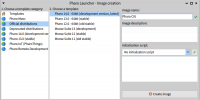
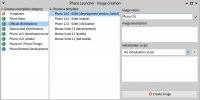
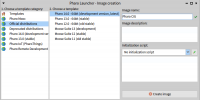
Pharo Template: Pharo 14.0 - 64bit (development version, latest)
Pharo CIG Github: https://github.com/pharo-cig/pharo-cig
Raylib: https://github.com/raysan5/raylib

Steps to Reproduce

Step 1: Create Image

[cid:1a4a23bb-52e6-47a5-b0a7-b251d6ddc8ea]

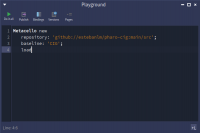
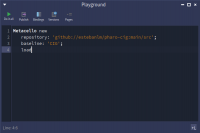
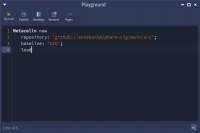
Step 2: Installing Pharo CIG

Open Playground wtih 'Ctrl + O + P' (or 'Cmd + O + P').
Copy and paste the Installation Code from the Pharo CIG Githubhttps://github.com/pharo-cig/pharo-cig.
Click the "Do it All" green triangle button on the top left of the Playground Window.

[cid:2a667f99-b808-4950-a40a-798054e502e4]

Step 3: Installing Clang

Download and run the Pre-built binaries from this Github pagehttps://github.com/llvm/llvm-project/releases/tag/llvmorg-18.1.8 according to your platform.
The folder named LLVM should be in your "C:\Program Files" directory after installation for Windows 11.
Other installation methods may be used according to your preference.

Step 4: Installing raylib

Download or clone the raylib Github repositoryhttps://github.com/raysan5/raylib.

Extract the folder ('raylib-master') if you are downloading the repository.
Place the folder in a directory of your preference. E.g "C:\Users\morgan\raylib-master"

Step 5: Setting Pharo CIG Requirements

CIG needs to be able to find the clang library. If it cannot find it automatically, set the location in LibClang>>unix64LibraryName, e.g. - Pharo CIG Githubhttps://github.com/pharo-cig/pharo-cig
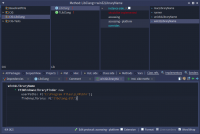
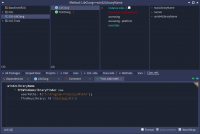
Open System Browser with 'Ctrl + O + B' (or 'Cmd + O + B').
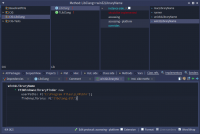
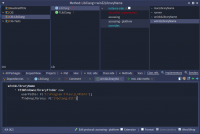
Create a "win32LibraryName" method in the LibClang class under the CIG-LibClang package to set your "libclang.dll" location. This method is missing from the default installation.
Paste in this code (There may be whitespace character issues):

win32LibraryName
^ FFIWindowsLibraryFinder new
userPaths: #('C:\Program Files\LLVM\bin');
findAnyLibrary: #('libclang.dll')

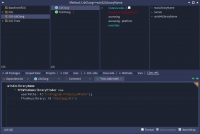
[cid:3241b208-b515-4b7b-98fc-45312ec65c82]

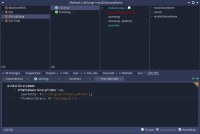
Save and create the method with 'Ctrl + S' (or 'Cmd + S').

[cid:7d0e72f0-4086-411a-8e27-c2b11c4df817]

Step 6: The Example Recipe from Github

Open Playground wtih 'Ctrl + O + P' (or 'Cmd + O + P').

Copy and paste the example recipe from Github https://github.com/pharo-cig/pharo-cig?tab=readme-ov-file into the Playground.

Configure the example recipe from Githubhttps://github.com/pharo-cig/pharo-cig?tab=readme-ov-file.

Change "import:" and "cIncludedPath:" directories according to your file structure. E.g '/home/esteban/dev/vm/raylib/src/raylib.h' → 'C:\Users\morgan\raylib-master\src\raylib.h'

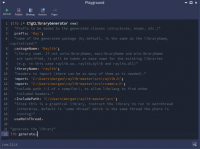
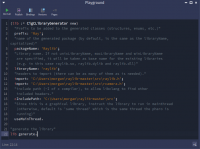
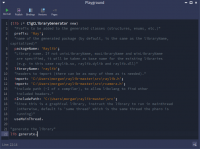
Click the "Do it All" green triangle button on the top left of the Playground Window. This should cause the Virtual Machine to abruptly exit or crash.

Code Snippet (There may be whitespace character issues):

(lib := CigCLibraryGenerator new)
"Prefix to be added to the generated classes (structures, enums, etc.)"
prefix: 'Ray';
"name of the generated package (by default, is the same as the libraryName, capitalized)"
packageName: 'Raylib';
"Library name. If not unixLibraryName, macLibraryName and winLibraryName
are specified, it will be taken as base name for the existing libraries
(e.g. in this case raylib.so, raylib.dylib and raylib.dll)"
libraryName: 'raylib';
"headers to import (there can be as many of them as is needed)."
import: 'C:\Users\morgan\raylib-master\src\raylib.h';
import: 'C:\Users\morgan\raylib-master\src\rcamera.h';
"include path (-I of c compiler), to allow libclang to find other
included headers."
cIncludePath: 'C:\Users\morgan\raylib-master\src';
"Since this is a graphical library, instruct the library to run in mainthread
(otherwise, default is 'same thread' which is the same thread the pharo is
running)"
useMainThread.

"generate the library"
lib generate.

[cid:55b4605c-3b19-45f0-8ed8-ef9093b6fa89]

End of email.
Forwarding the original email. ________________________________ From: MORGAN LEE GUAN HAN <1211107272@student.mmu.edu.my> Sent: Saturday, November 29, 2025 12:08 AM To: Aik-Siong Koh <askoh@askoh.com> Subject: Pharo CIG Crash Issue Dear Pharo Team, I am currently attempting to replicate what Esteban Lorenzano did for this Youtube Video<https://www.youtube.com/watch?v=U9fpvZJaFx4> (Esteban Lorenzano - Pharo-CIG: C++ Interface Generator - 23 April 2025), which is to generate C Bindings for Pharo uFFI to call, in Windows 11. Unfortunately, I am unable to replicate the results of the video. The results of my attempts leads to Pharo's Virtual Machine crashing and exiting abruptly to the launcher. I am unable to find any logs for this, and would appreciate your support for this matter. OS: Windows 11 Clang: https://github.com/llvm/llvm-project/releases/tag/llvmorg-18.1.8 (LLVM-18.1.8-win64.exe) Pharo Template: Pharo 14.0 - 64bit (development version, latest) Pharo CIG Github: https://github.com/pharo-cig/pharo-cig Raylib: https://github.com/raysan5/raylib Steps to Reproduce Step 1: Create Image [cid:1a4a23bb-52e6-47a5-b0a7-b251d6ddc8ea] Step 2: Installing Pharo CIG Open Playground wtih 'Ctrl + O + P' (or 'Cmd + O + P'). Copy and paste the Installation Code from the Pharo CIG Github<https://github.com/pharo-cig/pharo-cig>. Click the "Do it All" green triangle button on the top left of the Playground Window. [cid:2a667f99-b808-4950-a40a-798054e502e4] Step 3: Installing Clang Download and run the Pre-built binaries from this Github page<https://github.com/llvm/llvm-project/releases/tag/llvmorg-18.1.8> according to your platform. The folder named LLVM should be in your "C:\Program Files" directory after installation for Windows 11. Other installation methods may be used according to your preference. Step 4: Installing raylib Download or clone the raylib Github repository<https://github.com/raysan5/raylib>. Extract the folder ('raylib-master') if you are downloading the repository. Place the folder in a directory of your preference. E.g "C:\Users\morgan\raylib-master" Step 5: Setting Pharo CIG Requirements CIG needs to be able to find the clang library. If it cannot find it automatically, set the location in LibClang>>unix64LibraryName, e.g. - Pharo CIG Github<https://github.com/pharo-cig/pharo-cig> Open System Browser with 'Ctrl + O + B' (or 'Cmd + O + B'). Create a "win32LibraryName" method in the LibClang class under the CIG-LibClang package to set your "libclang.dll" location. This method is missing from the default installation. Paste in this code (There may be whitespace character issues): win32LibraryName ^ FFIWindowsLibraryFinder new userPaths: #('C:\Program Files\LLVM\bin'); findAnyLibrary: #('libclang.dll') [cid:3241b208-b515-4b7b-98fc-45312ec65c82] Save and create the method with 'Ctrl + S' (or 'Cmd + S'). [cid:7d0e72f0-4086-411a-8e27-c2b11c4df817] Step 6: The Example Recipe from Github Open Playground wtih 'Ctrl + O + P' (or 'Cmd + O + P'). Copy and paste the example recipe from Github <https://github.com/pharo-cig/pharo-cig?tab=readme-ov-file> into the Playground. Configure the example recipe from Github<https://github.com/pharo-cig/pharo-cig?tab=readme-ov-file>. Change "import:" and "cIncludedPath:" directories according to your file structure. E.g '/home/esteban/dev/vm/raylib/src/raylib.h' → 'C:\Users\morgan\raylib-master\src\raylib.h' Click the "Do it All" green triangle button on the top left of the Playground Window. This should cause the Virtual Machine to abruptly exit or crash. Code Snippet (There may be whitespace character issues): (lib := CigCLibraryGenerator new) "Prefix to be added to the generated classes (structures, enums, etc.)" prefix: 'Ray'; "name of the generated package (by default, is the same as the libraryName, capitalized)" packageName: 'Raylib'; "Library name. If not unixLibraryName, macLibraryName and winLibraryName are specified, it will be taken as base name for the existing libraries (e.g. in this case raylib.so, raylib.dylib and raylib.dll)" libraryName: 'raylib'; "headers to import (there can be as many of them as is needed)." import: 'C:\Users\morgan\raylib-master\src\raylib.h'; import: 'C:\Users\morgan\raylib-master\src\rcamera.h'; "include path (-I of c compiler), to allow libclang to find other included headers." cIncludePath: 'C:\Users\morgan\raylib-master\src'; "Since this is a graphical library, instruct the library to run in mainthread (otherwise, default is 'same thread' which is the same thread the pharo is running)" useMainThread. "generate the library" lib generate. [cid:55b4605c-3b19-45f0-8ed8-ef9093b6fa89] End of email.
EL
Esteban Lorenzano
Sat, Nov 29, 2025 8:31 AM

Hello,

pharo-cig has never been tested on windows, I no wonder is crashing :)

until now, generation always happened in linux-side (generatedlibraries
however have been tested on windows, time to time... when generation has
nothing to do with the platform :P).

I have to say that pharo-cig is not a "pharo team" project (in the sense
any member of the pharo team can take it). While we can have this
conversation here, I would very much prefer if we have it at
https://github.com/pharo-cig/pharo-cig  :)

Esteban

On 11/29/25 03:09, MORGAN LEE GUAN HAN via Pharo-dev wrote:

Forwarding the original email.


From: MORGAN LEE GUAN HAN 1211107272@student.mmu.edu.my
Sent: Saturday, November 29, 2025 12:08 AM
To: Aik-Siong Koh askoh@askoh.com
Subject: Pharo CIG Crash Issue
Dear Pharo Team,

I am currently attempting to replicate what Esteban Lorenzano did for
this Youtube Video https://www.youtube.com/watch?v=U9fpvZJaFx4
/(//Esteban Lorenzano - Pharo-CIG: C++ Interface Generator - 23 April
2025/
/), /which is to//generate C Bindings for Pharo uFFI to
call,//in Windows 11/. /Unfortunately, I am unable to replicate the
results of the video. The results of my attempts leads to Pharo's
Virtual Machine crashing and exiting abruptly to the launcher. I am
unable to find any logs for this, and would appreciate your support
for this matter.

OS: Windows 11
Clang:
https://github.com/llvm/llvm-project/releases/tag/llvmorg-18.1.8
https://github.com/llvm/llvm-project/releases/tag/llvmorg-18.1.8 (LLVM-18.1.8-win64.exe)
Pharo Template: Pharo 14.0 - 64bit (development version, latest)
Pharo CIG Github: https://github.com/pharo-cig/pharo-cig
https://github.com/pharo-cig/pharo-cig
Raylib: https://github.com/raysan5/raylib
https://github.com/raysan5/raylib

Steps to Reproduce

Step 1: Create Image

**

Step 2: Installing Pharo CIG

Open Playground wtih 'Ctrl + O + P' (or 'Cmd + O + P').
Copy and paste the Installation Code from the Pharo CIG Github
https://github.com/pharo-cig/pharo-cig.
Click the "Do it All" green triangle button on the top left of the
Playground Window.

**

Step 3: Installing Clang

Download and run the Pre-built binaries from this Github page
https://github.com/llvm/llvm-project/releases/tag/llvmorg-18.1.8 according
to your platform.
The folder named LLVM should be in your "C:\Program Files" directory
after installation for Windows 11.
Other installation methods may be used according to your preference.

Step 4: Installing raylib

Download or clone the raylib Github repository
https://github.com/raysan5/raylib.

Extract the folder ('raylib-master') if you are downloading the
repository.
Place the folder in a directory of your preference. E.g
"C:\Users\morgan\raylib-master"

Step 5: Setting Pharo CIG Requirements

CIG needs to be able to find the clang library. If it cannot find it
automatically, set the location in LibClang>>unix64LibraryName, e.g. -
Pharo CIG Github https://github.com/pharo-cig/pharo-cig
Open System Browser with 'Ctrl + O + B' (or 'Cmd + O + B').
Create a "win32LibraryName" method in the LibClang class under the
CIG-LibClang package to set your "libclang.dll" location. This method
is missing from the default installation.
Paste in this code (/There may be whitespace character issues)/:
|win32LibraryName    ^ FFIWindowsLibraryFinder new        userPaths:
#('C:\Program Files\LLVM\bin');        findAnyLibrary: #('libclang.dll')|

Save and create the method with 'Ctrl + S' (or 'Cmd + S').

Step 6: The Example Recipe from Github

Open Playground wtih 'Ctrl + O + P' (or 'Cmd + O + P').

Copy and paste the example recipe from Github
https://github.com/pharo-cig/pharo-cig?tab=readme-ov-fileinto the
Playground.

Configure the example recipe from Github
https://github.com/pharo-cig/pharo-cig?tab=readme-ov-file.

Change "import:" and "cIncludedPath:" directories according to your
file structure. E.g '/home/esteban/dev/vm/raylib/src/raylib.h'
→ 'C:\Users\morgan\raylib-master\src\raylib.h'

Click the "Do it All" green triangle button on the top left of the
Playground Window. This should cause the Virtual Machine to abruptly
exit or crash.

Code Snippet (/There may be whitespace character issues):/

(lib := CigCLibraryGenerator new)
  "Prefix to be added to the generated classes (structures, enums, etc.)"
  prefix: 'Ray';
  "name of the generated package (by default, is the same as the
libraryName, capitalized)"
  packageName: 'Raylib';
  "Library name. If not unixLibraryName, macLibraryName and winLibraryName
   are specified, it will be taken as base name for the existing libraries
   (e.g. in this case raylib.so, raylib.dylib and raylib.dll)"
  libraryName: 'raylib';
  "headers to import (there can be as many of them as is needed)."
  import: 'C:\Users\morgan\raylib-master\src\raylib.h';
  import: 'C:\Users\morgan\raylib-master\src\rcamera.h';
  "include path (-I of c compiler), to allow libclang to find other
   included headers."
  cIncludePath: 'C:\Users\morgan\raylib-master\src';
  "Since this is a graphical library, instruct the library to run in
mainthread
   (otherwise, default is 'same thread' which is the same thread the
pharo is
   running)"
  useMainThread.
"generate the library"
lib generate.

End of email.
Hello, pharo-cig has never been tested on windows, I no wonder is crashing :) until now, generation always happened in linux-side (generatedlibraries however have been tested on windows, time to time... when generation has nothing to do with the platform :P). I have to say that pharo-cig is not a "pharo team" project (in the sense any member of the pharo team can take it). While we can have this conversation here, I would very much prefer if we have it at https://github.com/pharo-cig/pharo-cig  :) Esteban On 11/29/25 03:09, MORGAN LEE GUAN HAN via Pharo-dev wrote: > Forwarding the original email. > > ------------------------------------------------------------------------ > *From:* MORGAN LEE GUAN HAN <1211107272@student.mmu.edu.my> > *Sent:* Saturday, November 29, 2025 12:08 AM > *To:* Aik-Siong Koh <askoh@askoh.com> > *Subject:* Pharo CIG Crash Issue > Dear Pharo Team, > > I am currently attempting to replicate what Esteban Lorenzano did for > this Youtube Video <https://www.youtube.com/watch?v=U9fpvZJaFx4> > /(/*/Esteban Lorenzano - Pharo-CIG: C++ Interface Generator - 23 April > 2025/*/), /which is to//generate C Bindings for Pharo uFFI to > call,//in Windows 11/. /Unfortunately, I am unable to replicate the > results of the video. The results of my attempts leads to Pharo's > Virtual Machine crashing and exiting abruptly to the launcher. I am > unable to find any logs for this, and would appreciate your support > for this matter. > > *OS:* Windows 11 > *Clang:* > https://github.com/llvm/llvm-project/releases/tag/llvmorg-18.1.8 > <https://github.com/llvm/llvm-project/releases/tag/llvmorg-18.1.8> (LLVM-18.1.8-win64.exe) > *Pharo Template:* Pharo 14.0 - 64bit (development version, latest) > *Pharo CIG Github:* https://github.com/pharo-cig/pharo-cig > <https://github.com/pharo-cig/pharo-cig> > *Raylib: https://github.com/raysan5/raylib > <https://github.com/raysan5/raylib>* > > *Steps to Reproduce* > > *Step 1: Create Image* > > ** > > *Step 2: Installing Pharo CIG* > > Open Playground wtih 'Ctrl + O + P' (or 'Cmd + O + P'). > Copy and paste the Installation Code from the Pharo CIG Github > <https://github.com/pharo-cig/pharo-cig>. > Click the "Do it All" green triangle button on the top left of the > Playground Window. > > ** > > *Step 3: Installing Clang* > > Download and run the Pre-built binaries from this Github page > <https://github.com/llvm/llvm-project/releases/tag/llvmorg-18.1.8> according > to your platform. > The folder named LLVM should be in your "C:\Program Files" directory > after installation for Windows 11. > Other installation methods may be used according to your preference. > > *Step 4: Installing raylib* > > Download or clone the raylib Github repository > <https://github.com/raysan5/raylib>. > > Extract the folder ('raylib-master') if you are downloading the > repository. > Place the folder in a directory of your preference. E.g > "C:\Users\morgan\raylib-master" > > *Step 5: Setting Pharo CIG Requirements* > > CIG needs to be able to find the clang library. If it cannot find it > automatically, set the location in LibClang>>unix64LibraryName, e.g. - > Pharo CIG Github <https://github.com/pharo-cig/pharo-cig> > Open System Browser with 'Ctrl + O + B' (or 'Cmd + O + B'). > Create a "win32LibraryName" method in the LibClang class under the > CIG-LibClang package to set your "libclang.dll" location. This method > is missing from the default installation. > Paste in this code (/There may be whitespace character issues)/: > |win32LibraryName    ^ FFIWindowsLibraryFinder new        userPaths: > #('C:\Program Files\LLVM\bin');        findAnyLibrary: #('libclang.dll')| > > Save and create the method with 'Ctrl + S' (or 'Cmd + S'). > > > *Step 6: The Example Recipe from Github* > > Open Playground wtih 'Ctrl + O + P' (or 'Cmd + O + P'). > > Copy and paste the example recipe from Github > <https://github.com/pharo-cig/pharo-cig?tab=readme-ov-file>into the > Playground. > > Configure the example recipe from Github > <https://github.com/pharo-cig/pharo-cig?tab=readme-ov-file>. > > Change "import:" and "cIncludedPath:" directories according to your > file structure. E.g '/home/esteban/dev/vm/raylib/src/raylib.h' > → 'C:\Users\morgan\raylib-master\src\raylib.h' > > Click the "Do it All" green triangle button on the top left of the > Playground Window. This should cause the Virtual Machine to abruptly > exit or crash. > > Code Snippet (/There may be whitespace character issues):/ > > (lib := CigCLibraryGenerator new) >   "Prefix to be added to the generated classes (structures, enums, etc.)" >   prefix: 'Ray'; >   "name of the generated package (by default, is the same as the > libraryName, capitalized)" >   packageName: 'Raylib'; >   "Library name. If not unixLibraryName, macLibraryName and winLibraryName >    are specified, it will be taken as base name for the existing libraries >    (e.g. in this case raylib.so, raylib.dylib and raylib.dll)" >   libraryName: 'raylib'; >   "headers to import (there can be as many of them as is needed)." >   import: 'C:\Users\morgan\raylib-master\src\raylib.h'; >   import: 'C:\Users\morgan\raylib-master\src\rcamera.h'; >   "include path (-I of c compiler), to allow libclang to find other >    included headers." >   cIncludePath: 'C:\Users\morgan\raylib-master\src'; >   "Since this is a graphical library, instruct the library to run in > mainthread >    (otherwise, default is 'same thread' which is the same thread the > pharo is >    running)" >   useMainThread. > "generate the library" > lib generate. > > > > End of email. > > > >
AK
Aik-Siong Koh
Fri, Dec 5, 2025 2:36 PM

Esteban:

My student Morgan Lee has posted the issue at
https://github.com/pharo-cig/pharo-cig/issues/41

We are eager to interface Pharo to OpenCascade.

Thanks,
Aik-Siong Koh

On Sat, 29 Nov 2025 09:31:31 +0100, Esteban Lorenzano via Pharo-dev pharo-dev@lists.pharo.org wrote:
 
Hello, 


pharo-cig has never been tested on windows, I no wonder is crashing :)

until now, generation always happened in linux-side (generatedlibraries however have been tested on windows, time to time... when generation has nothing to do with the platform :P).


I have to say that pharo-cig is not a "pharo team" project (in the sense any member of the pharo team can take it). While we can have this conversation here, I would very much prefer if we have it at https://github.com/pharo-cig/pharo-cig  :)


Esteban


On 11/29/25 03:09, MORGAN LEE GUAN HAN via Pharo-dev wrote:

P {margin-top:0;margin-bottom:0;}

Forwarding the original email.


From: MORGAN LEE GUAN HAN 1211107272@student.mmu.edu.my
Sent: Saturday, November 29, 2025 12:08 AM
To: Aik-Siong Koh askoh@askoh.com
Subject: Pharo CIG Crash Issue


Dear Pharo Team,


I am currently attempting to replicate what Esteban Lorenzano did for this  Youtube Video (Esteban Lorenzano - Pharo-CIG: C++ Interface Generator - 23 April 2025), which is to generate C Bindings for Pharo uFFI to call, in Windows 11. Unfortunately, I am unable to replicate the results of the video. The results of my attempts leads to Pharo's Virtual Machine crashing and exiting abruptly to the launcher. I am unable to find any logs for this, and would appreciate your support for this matter.


OS: Windows 11

Clang:  https://github.com/llvm/llvm-project/releases/tag/llvmorg-18.1.8 (LLVM-18.1.8-win64.exe)
Pharo Template: Pharo 14.0 - 64bit (development version, latest)

Pharo CIG Github: https://github.com/pharo-cig/pharo-cig

Raylib:  https://github.com/raysan5/raylib


Steps to Reproduce

Step 1: Create Image

Step 2: Installing Pharo CIG

Open Playground wtih 'Ctrl + O + P' (or 'Cmd + O + P').
Copy and paste the Installation Code from the  Pharo CIG Github.
Click the "Do it All" green triangle button on the top left of the Playground Window.

Step 3: Installing Clang

Download and run the Pre-built binaries from this  Github page according to your platform.

The folder named LLVM should be in your "C:\Program Files" directory after installation for Windows 11.

Other installation methods may be used according to your preference.

Step 4: Installing raylib

Download or clone the raylib  Github repository.

Extract the folder ('raylib-master') if you are downloading the repository.

Place the folder in a directory of your preference. E.g "C:\Users\morgan\raylib-master"

Step 5: Setting Pharo CIG Requirements

CIG needs to be able to find the clang library. If it cannot find it automatically, set the location in LibClang>>unix64LibraryName, e.g.  - Pharo CIG Github

Open System Browser with 'Ctrl + O + B' (or 'Cmd + O + B').

Create a "win32LibraryName" method in the LibClang class under the CIG-LibClang package to set your "libclang.dll" location. This method is missing from the default installation.

Paste in this code (There may be whitespace character issues):


		win32LibraryName    ^ FFIWindowsLibraryFinder new        userPaths: #('C:\Program Files\LLVM\bin');        findAnyLibrary: #('libclang.dll')


Save and create the method with 'Ctrl + S' (or 'Cmd + S').


Step 6: The Example Recipe from Github

Open Playground wtih 'Ctrl + O + P' (or 'Cmd + O + P').

Copy and paste the example recipe from  Github into the Playground.

Configure the example recipe from  Github.

Change "import:" and "cIncludedPath:" directories according to your file structure. E.g '/home/esteban/dev/vm/raylib/src/raylib.h' → 'C:\Users\morgan\raylib-master\src\raylib.h'

Click the "Do it All" green triangle button on the top left of the Playground Window. This should cause the Virtual Machine to abruptly exit or crash.

Code Snippet (There may be whitespace character issues):


		(lib := CigCLibraryGenerator new)

		  "Prefix to be added to the generated classes (structures, enums, etc.)"

		  prefix: 'Ray';

		  "name of the generated package (by default, is the same as the libraryName, capitalized)"

		  packageName: 'Raylib';

		  "Library name. If not unixLibraryName, macLibraryName and winLibraryName

		   are specified, it will be taken as base name for the existing libraries

		   (e.g. in this case raylib.so, raylib.dylib and raylib.dll)" 

		  libraryName: 'raylib';

		  "headers to import (there can be as many of them as is needed)."

		  import: 'C:\Users\morgan\raylib-master\src\raylib.h';

		  import: 'C:\Users\morgan\raylib-master\src\rcamera.h';

		  "include path (-I of c compiler), to allow libclang to find other

		   included headers."

		  cIncludePath: 'C:\Users\morgan\raylib-master\src';

		  "Since this is a graphical library, instruct the library to run in mainthread

		   (otherwise, default is 'same thread' which is the same thread the pharo is

		   running)"  

		  useMainThread.


		"generate the library"

		lib generate.


End of email.


Esteban: My student Morgan Lee has posted the issue at https://github.com/pharo-cig/pharo-cig/issues/41 We are eager to interface Pharo to OpenCascade. Thanks, Aik-Siong Koh On Sat, 29 Nov 2025 09:31:31 +0100, Esteban Lorenzano via Pharo-dev <pharo-dev@lists.pharo.org> wrote:   Hello,    pharo-cig has never been tested on windows, I no wonder is crashing :) until now, generation always happened in linux-side (generatedlibraries however have been tested on windows, time to time... when generation has nothing to do with the platform :P).   I have to say that pharo-cig is not a "pharo team" project (in the sense any member of the pharo team can take it). While we can have this conversation here, I would very much prefer if we have it at https://github.com/pharo-cig/pharo-cig  :)   Esteban   On 11/29/25 03:09, MORGAN LEE GUAN HAN via Pharo-dev wrote: P {margin-top:0;margin-bottom:0;} Forwarding the original email.   From: MORGAN LEE GUAN HAN <1211107272@student.mmu.edu.my> Sent: Saturday, November 29, 2025 12:08 AM To: Aik-Siong Koh <askoh@askoh.com> Subject: Pharo CIG Crash Issue   Dear Pharo Team,   I am currently attempting to replicate what Esteban Lorenzano did for this Youtube Video (Esteban Lorenzano - Pharo-CIG: C++ Interface Generator - 23 April 2025), which is to generate C Bindings for Pharo uFFI to call, in Windows 11. Unfortunately, I am unable to replicate the results of the video. The results of my attempts leads to Pharo's Virtual Machine crashing and exiting abruptly to the launcher. I am unable to find any logs for this, and would appreciate your support for this matter.   OS: Windows 11 Clang: https://github.com/llvm/llvm-project/releases/tag/llvmorg-18.1.8 (LLVM-18.1.8-win64.exe) Pharo Template: Pharo 14.0 - 64bit (development version, latest) Pharo CIG Github: https://github.com/pharo-cig/pharo-cig Raylib: https://github.com/raysan5/raylib   Steps to Reproduce Step 1: Create Image Step 2: Installing Pharo CIG Open Playground wtih 'Ctrl + O + P' (or 'Cmd + O + P'). Copy and paste the Installation Code from the Pharo CIG Github. Click the "Do it All" green triangle button on the top left of the Playground Window. Step 3: Installing Clang Download and run the Pre-built binaries from this Github page according to your platform. The folder named LLVM should be in your "C:\Program Files" directory after installation for Windows 11. Other installation methods may be used according to your preference. Step 4: Installing raylib Download or clone the raylib Github repository. Extract the folder ('raylib-master') if you are downloading the repository. Place the folder in a directory of your preference. E.g "C:\Users\morgan\raylib-master" Step 5: Setting Pharo CIG Requirements CIG needs to be able to find the clang library. If it cannot find it automatically, set the location in LibClang>>unix64LibraryName, e.g. - Pharo CIG Github Open System Browser with 'Ctrl + O + B' (or 'Cmd + O + B'). Create a "win32LibraryName" method in the LibClang class under the CIG-LibClang package to set your "libclang.dll" location. This method is missing from the default installation. Paste in this code (There may be whitespace character issues):   win32LibraryName    ^ FFIWindowsLibraryFinder new        userPaths: #('C:\Program Files\LLVM\bin');        findAnyLibrary: #('libclang.dll') Save and create the method with 'Ctrl + S' (or 'Cmd + S').   Step 6: The Example Recipe from Github Open Playground wtih 'Ctrl + O + P' (or 'Cmd + O + P'). Copy and paste the example recipe from Github into the Playground. Configure the example recipe from Github. Change "import:" and "cIncludedPath:" directories according to your file structure. E.g '/home/esteban/dev/vm/raylib/src/raylib.h' → 'C:\Users\morgan\raylib-master\src\raylib.h' Click the "Do it All" green triangle button on the top left of the Playground Window. This should cause the Virtual Machine to abruptly exit or crash. Code Snippet (There may be whitespace character issues):     (lib := CigCLibraryGenerator new)   "Prefix to be added to the generated classes (structures, enums, etc.)"   prefix: 'Ray';   "name of the generated package (by default, is the same as the libraryName, capitalized)"   packageName: 'Raylib';   "Library name. If not unixLibraryName, macLibraryName and winLibraryName    are specified, it will be taken as base name for the existing libraries    (e.g. in this case raylib.so, raylib.dylib and raylib.dll)"    libraryName: 'raylib';   "headers to import (there can be as many of them as is needed)."   import: 'C:\Users\morgan\raylib-master\src\raylib.h';   import: 'C:\Users\morgan\raylib-master\src\rcamera.h';   "include path (-I of c compiler), to allow libclang to find other    included headers."   cIncludePath: 'C:\Users\morgan\raylib-master\src';   "Since this is a graphical library, instruct the library to run in mainthread    (otherwise, default is 'same thread' which is the same thread the pharo is    running)"     useMainThread.   "generate the library" lib generate.     End of email.