How to browse a given keymap category

Hi I wanted to fix https://pharo.fogbugz.com/default.asp?14845 Selecting a class and pressing command B+M raises an error so either we should check that the selected method is not nil (I do not like that much) or the key binding should not work on classes (preferred solution). buildBrowseShortcutsOn: aBuilder <keymap> (aBuilder shortcut: #browseSenders) category: #NautilusGlobalShortcuts default: $b command , $n command do: [:target | target browseSendersOfMessages ] description: 'Browse senders of the selected method'. (aBuilder shortcut: #browseClassRefs) category: #NautilusGlobalShortcuts default: $b command, $n command shift do: [ :target | target browseClassRefs ] description: 'Browse class references'. (aBuilder shortcut: #browseImplementors) category: #NautilusGlobalShortcuts default: $b command , $m command do: [:target | target browseMessages ] ^^^^^^^^^^^^^^^^^^^^^^^^^ description: 'Browse implementors of the selected method'. a "bad solution to my eye" is browseMessages self selectedMethod iifNil: [^ self]. <<<<< self browseMessagesFrom: self selectedMethod selector Now my question is then how can I find the different categories of bindings such as #NautilusGlobalShortCuts I tried to inspect a builder from the debugger but I got lost and should run to catch a train. Stef

Hi, Inspect KMRepository default and you will get all bindings and all local bindings. For example, in the picture below: - Inspect: KMRepository default - Filter the Keys by: Cmd + B , - Select the browseMessages entry and see the code. [image: Inline image 1] The picture below shows how to work with one category: - Inspect: KMRepository default categories - Select a the NautilusGlobalShortcuts - Filter by: "Messages" - Select the keymapping and see the code. [image: Inline image 2] You can see more explanations here: http://www.humane-assessment.com/blog/managing-morph-keybindings-with-gtinsp... Is this enough? Cheers, Doru On Sun, Feb 1, 2015 at 12:04 PM, stepharo <stepharo@free.fr> wrote:
Hi
I wanted to fix https://pharo.fogbugz.com/default.asp?14845 Selecting a class and pressing command B+M raises an error so either we should check that the selected method is not nil (I do not like that much) or the key binding should not work on classes (preferred solution).
buildBrowseShortcutsOn: aBuilder <keymap>
(aBuilder shortcut: #browseSenders) category: #NautilusGlobalShortcuts default: $b command , $n command do: [:target | target browseSendersOfMessages ] description: 'Browse senders of the selected method'.
(aBuilder shortcut: #browseClassRefs) category: #NautilusGlobalShortcuts default: $b command, $n command shift do: [ :target | target browseClassRefs ] description: 'Browse class references'.
(aBuilder shortcut: #browseImplementors) category: #NautilusGlobalShortcuts default: $b command , $m command do: [:target | target browseMessages ] ^^^^^^^^^^^^^^^^^^^^^^^^^ description: 'Browse implementors of the selected method'.
a "bad solution to my eye" is browseMessages self selectedMethod iifNil: [^ self]. <<<<< self browseMessagesFrom: self selectedMethod selector
Now my question is then how can I find the different categories of bindings such as #NautilusGlobalShortCuts I tried to inspect a builder from the debugger but I got lost and should run to catch a train.
Stef
-- www.tudorgirba.com "Every thing has its own flow"


Thanks doru I was thinking about GTInspector when I could not find my way :) I will try to understand if I can fix the problem I found. Stef Le 1/2/15 13:54, Tudor Girba a écrit :
Hi,
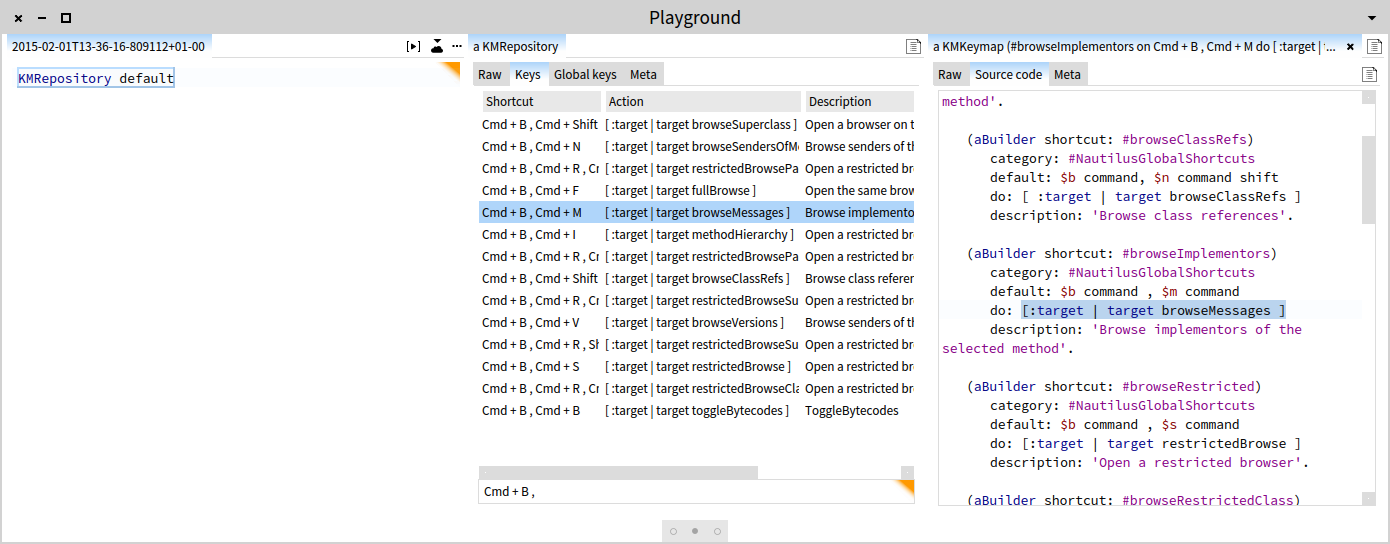
Inspect KMRepository default and you will get all bindings and all local bindings.
For example, in the picture below: - Inspect: KMRepository default - Filter the Keys by: Cmd + B , - Select the browseMessages entry and see the code.
Inline image 1
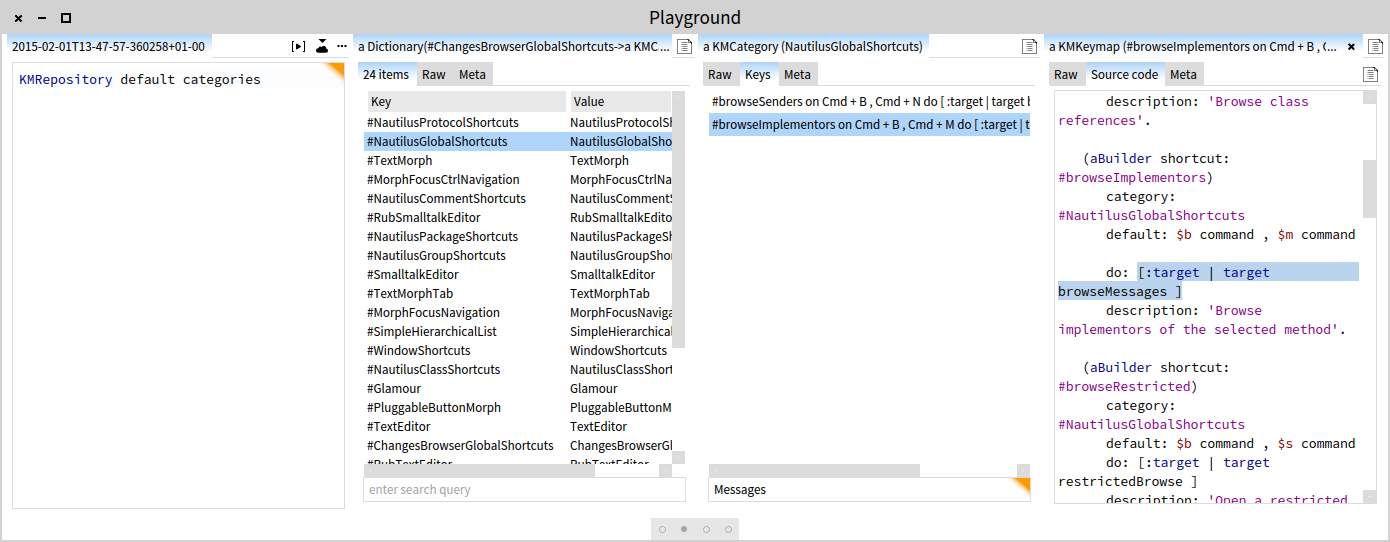
The picture below shows how to work with one category: - Inspect: KMRepository default categories - Select a the NautilusGlobalShortcuts - Filter by: "Messages" - Select the keymapping and see the code.
Inline image 2
You can see more explanations here: http://www.humane-assessment.com/blog/managing-morph-keybindings-with-gtinsp...
Is this enough?
Cheers, Doru
On Sun, Feb 1, 2015 at 12:04 PM, stepharo <stepharo@free.fr <mailto:stepharo@free.fr>> wrote:
Hi
I wanted to fix https://pharo.fogbugz.com/default.asp?14845 Selecting a class and pressing command B+M raises an error so either we should check that the selected method is not nil (I do not like that much) or the key binding should not work on classes (preferred solution).
buildBrowseShortcutsOn: aBuilder <keymap>
(aBuilder shortcut: #browseSenders) category: #NautilusGlobalShortcuts default: $b command , $n command do: [:target | target browseSendersOfMessages ] description: 'Browse senders of the selected method'.
(aBuilder shortcut: #browseClassRefs) category: #NautilusGlobalShortcuts default: $b command, $n command shift do: [ :target | target browseClassRefs ] description: 'Browse class references'.
(aBuilder shortcut: #browseImplementors) category: #NautilusGlobalShortcuts default: $b command , $m command do: [:target | target browseMessages ] ^^^^^^^^^^^^^^^^^^^^^^^^^ description: 'Browse implementors of the selected method'.
a "bad solution to my eye" is browseMessages self selectedMethod iifNil: [^ self]. <<<<< self browseMessagesFrom: self selectedMethod selector
Now my question is then how can I find the different categories of bindings such as #NautilusGlobalShortCuts I tried to inspect a builder from the debugger but I got lost and should run to catch a train.
Stef
-- www.tudorgirba.com <http://www.tudorgirba.com>
"Every thing has its own flow"

On Sun, Feb 1, 2015 at 7:04 PM, stepharo <stepharo@free.fr> wrote:
Hi
I wanted to fix https://pharo.fogbugz.com/default.asp?14845 Selecting a class and pressing command B+M raises an error so either we should check that the selected method is not nil (I do not like that much)
or the key binding should not work on classes (preferred solution).
Its not just that it should not work on classes. Open Nautilus and before selecting anything press CMD-B+M and you get the error. Also, select a method then click on it again to deselect it, then press CMD-B+M and you get the error cheers -ben
participants (3)
-
 Ben Coman
 -
 stepharo
 -
 Tudor Girba